
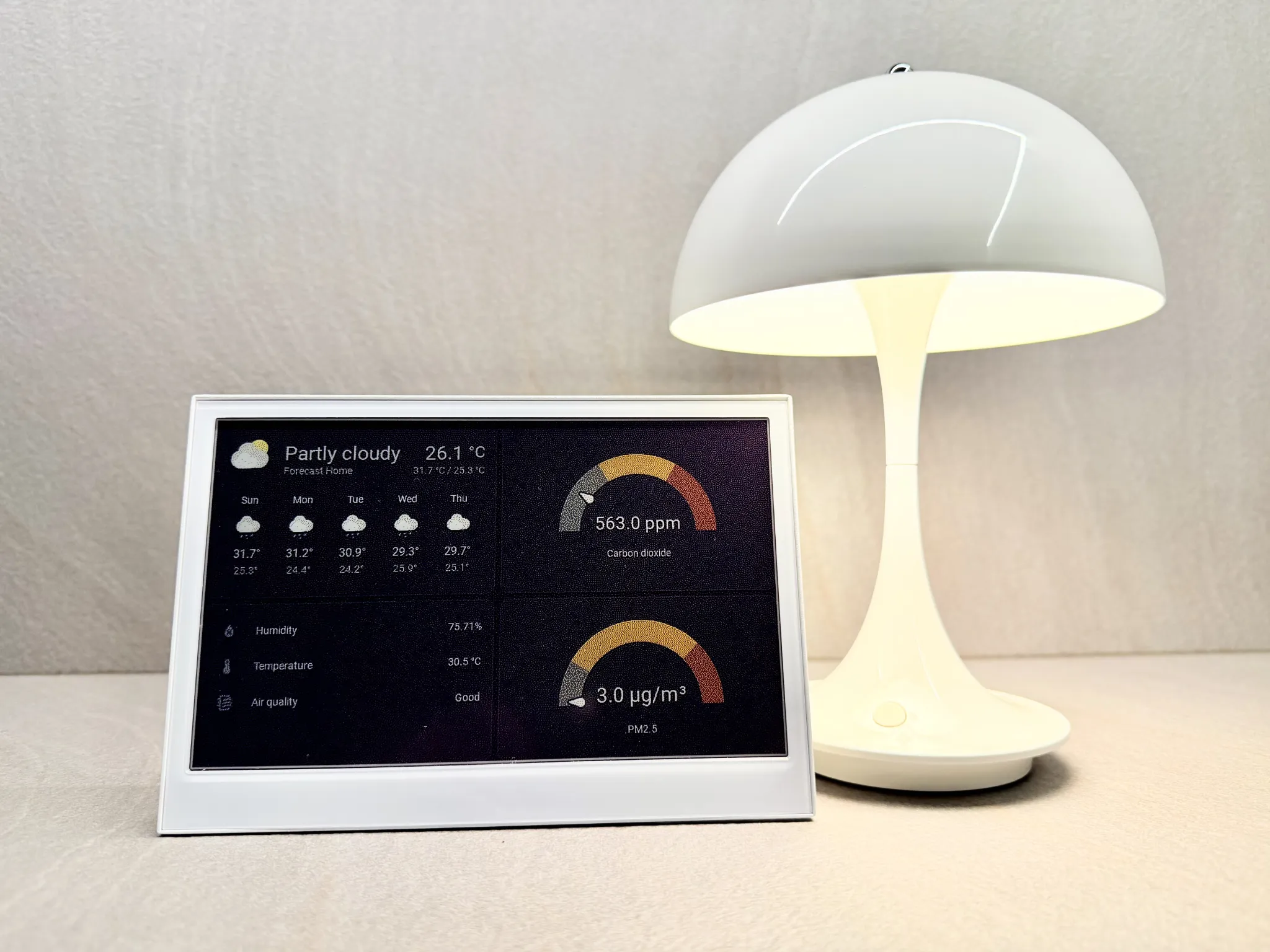
The typical way to publish content onto an e-ink display like the Seeed Studio reTerminal E1002 is through ESPHome. It’s a powerful framework, but between coding the layout in YAML, enduring long compile times, and flashing the device just to tweak a single sensor placement, a quick weekend project can easily turn into a multi-day time sink.
There’s a much faster route.
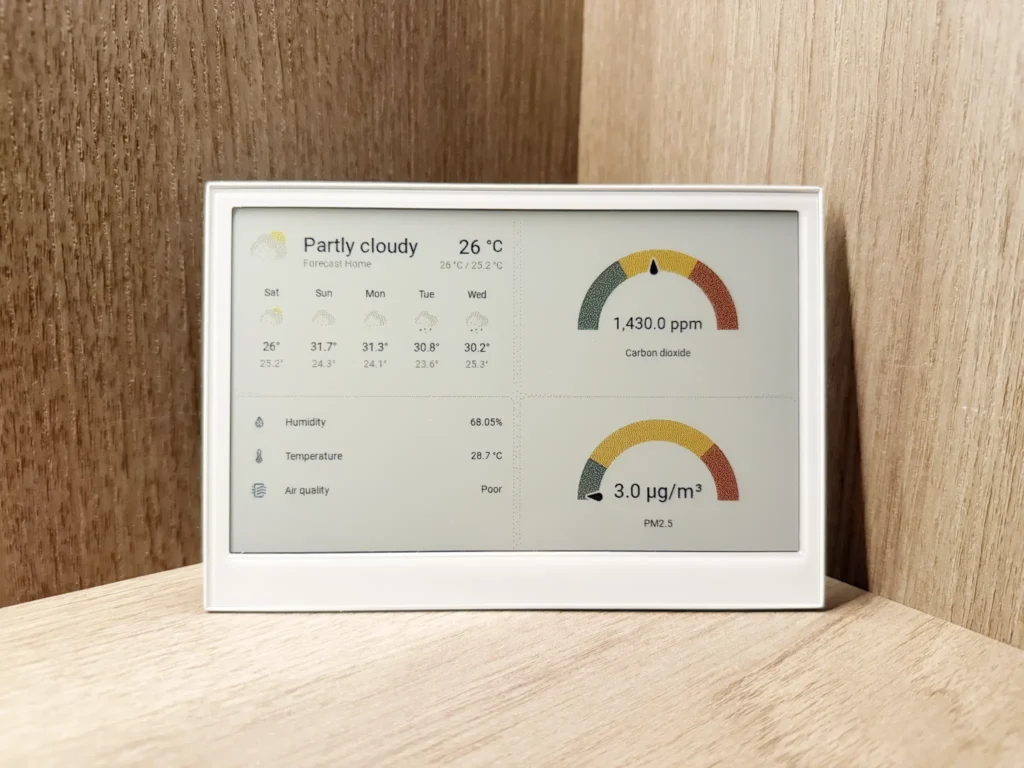
By using the Puppet app, you can design your display layout directly in Home Assistant just like a regular dashboard and have it automatically push to your ePaper screen at pre-defined intervals. You get the local reliability of ESPHome for the backend device setup, with absolutely zero YAML required for the actual design.
Out of the box, the Seeed Studio reTerminal E1002 features a 7.3-inch full-color display powered by E Ink’s Spectra 6 technology and an ESP32-S3 chip. With six vibrant colors, Wi-Fi connectivity, and up to three months of battery life wrapped in a sleek, wall-mountable metal enclosure, it’s purpose-built for an always-on smart home dashboard.
This step-by-step guide will take you from bare metal to a fully functional Home Assistant dashboard on a color ePaper display in just a few simple steps. Here’s exactly what we’ll cover:
Setting up ESPHome on Home Assistant
ESPHome is an open-source firmware creation tool specifically designed for ESP8266/ESP32 devices, and serves as the middleware that enables communication between a device and Home Assistant. For this project, we will use ESPHome to install firmware for displaying a Home Assistant dashboard on the Seeed Studio reTerminal E1002 ePaper display.
Follow the steps below to install ESPHome Device Builder in Home Assistant.
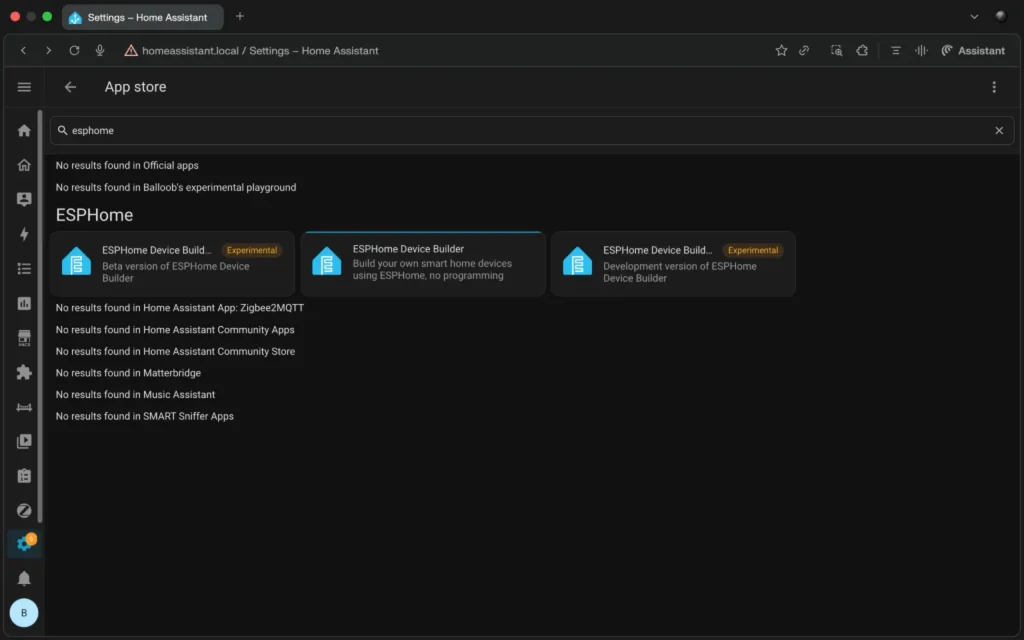
- Head to Settings > Apps
- Click Install app, and search for “ESPHome”
- Select the ESPHome Device Builder tile and click Install to proceed with installation
Once ESPHome Device Builder is set up, we’ll install the firmware for displaying a simple “Hello World” text on the reTerminal E1002.
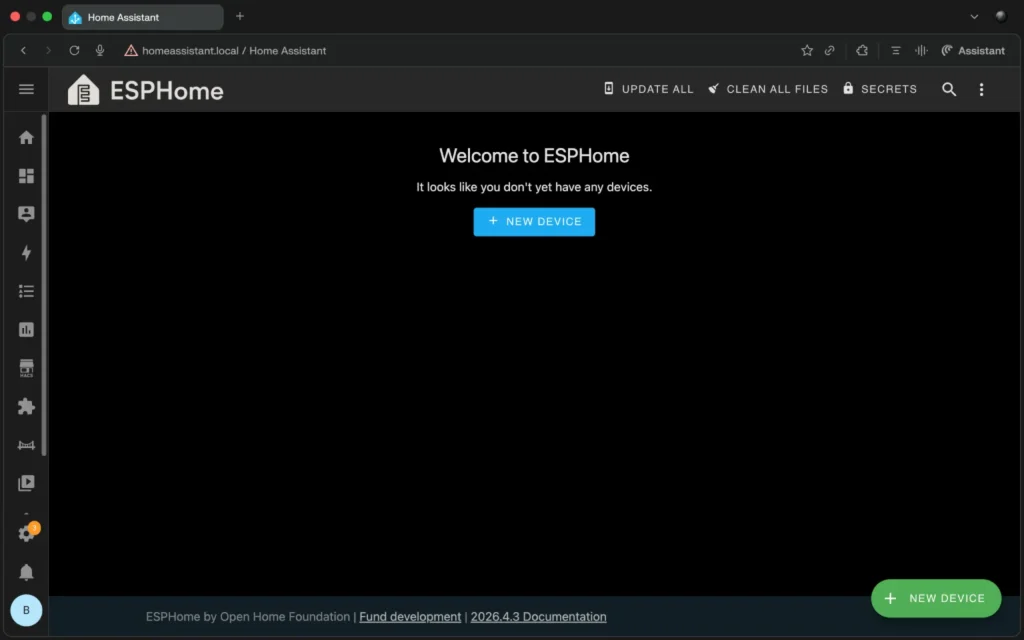
Open ESPHome Device Builder from Home Assistant Settings > Apps. Then click Open Web UI.

Click New Device.
Click Continue on the pop-up window.
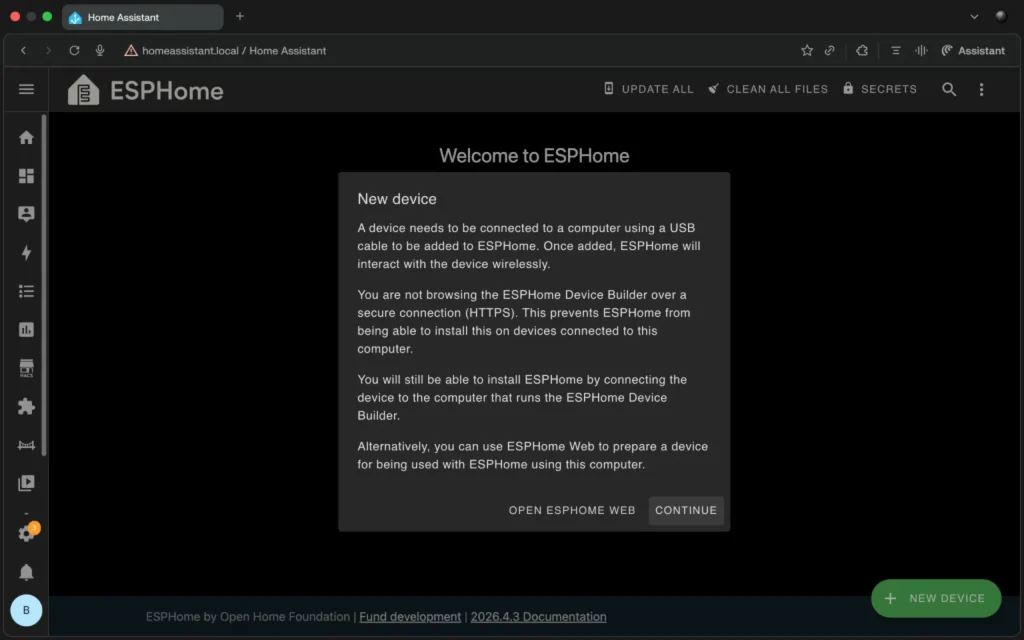
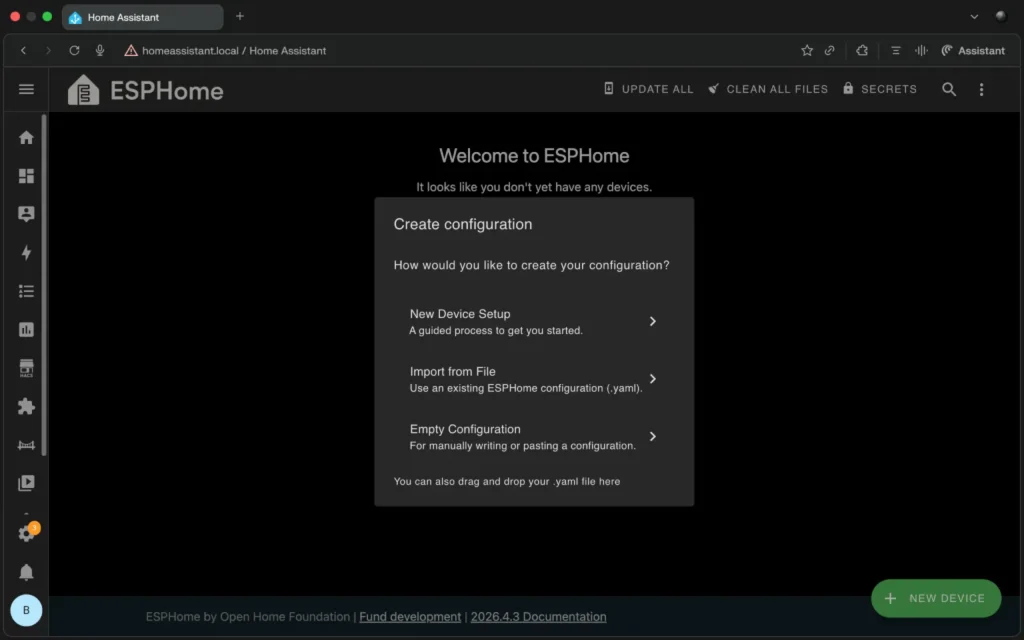
On the next screen, select New Device Setup.
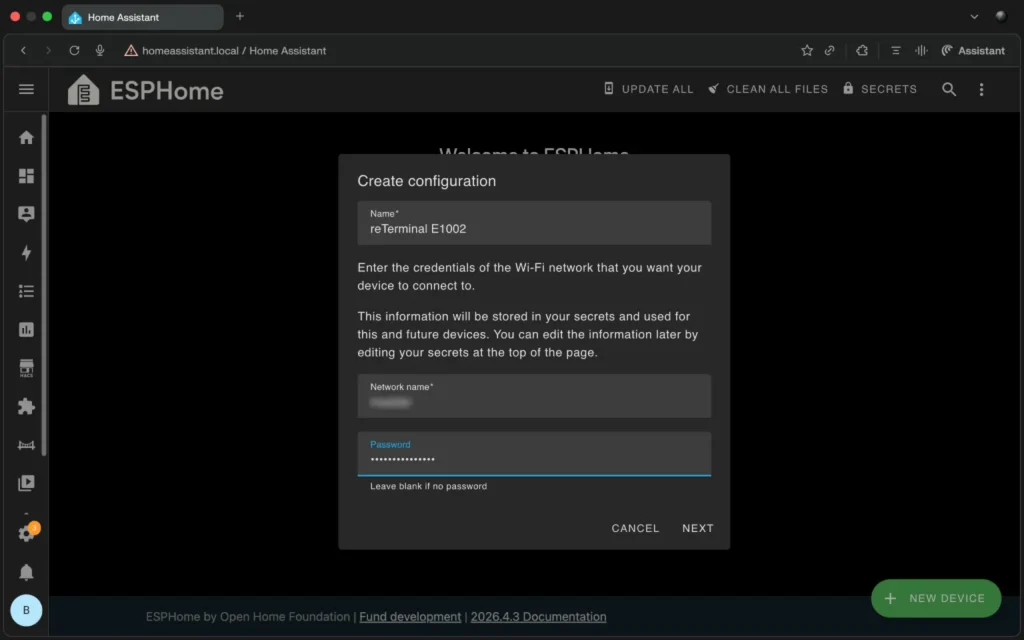
Give the device a name, then enter the credentials for the Wi-Fi network that the device will connect to.
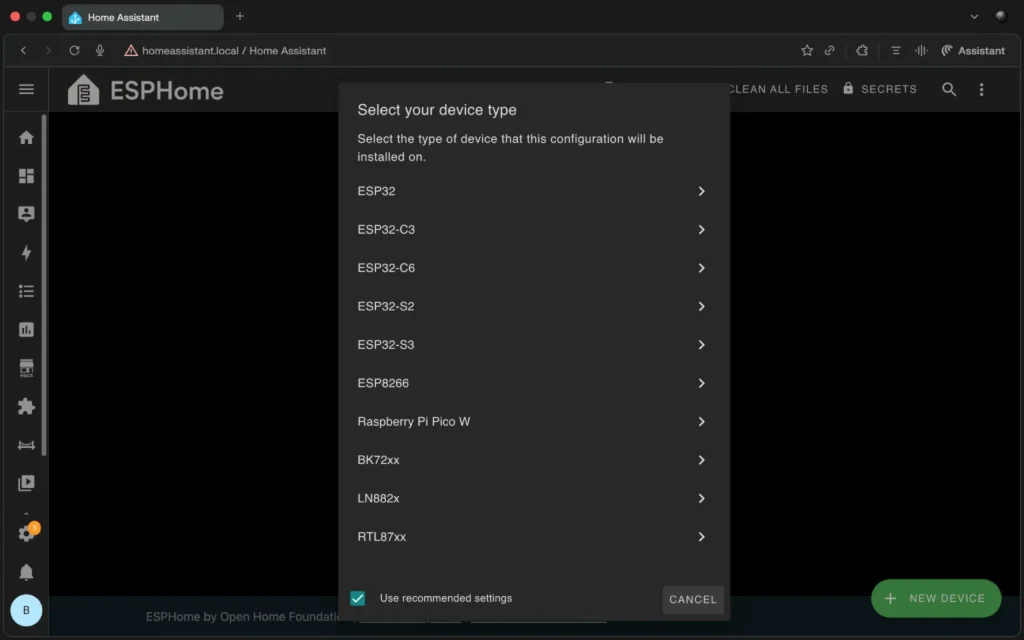
Select ESP32-S3 for chip type.
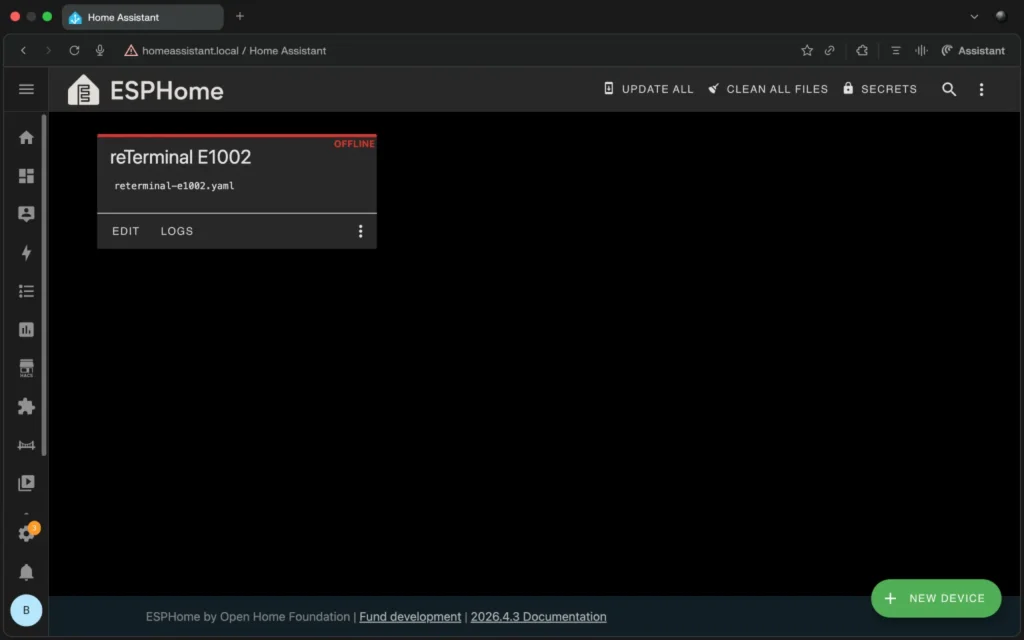
Select Skip on the next screen, and you will see the device tile on ESPHome Device Builder.
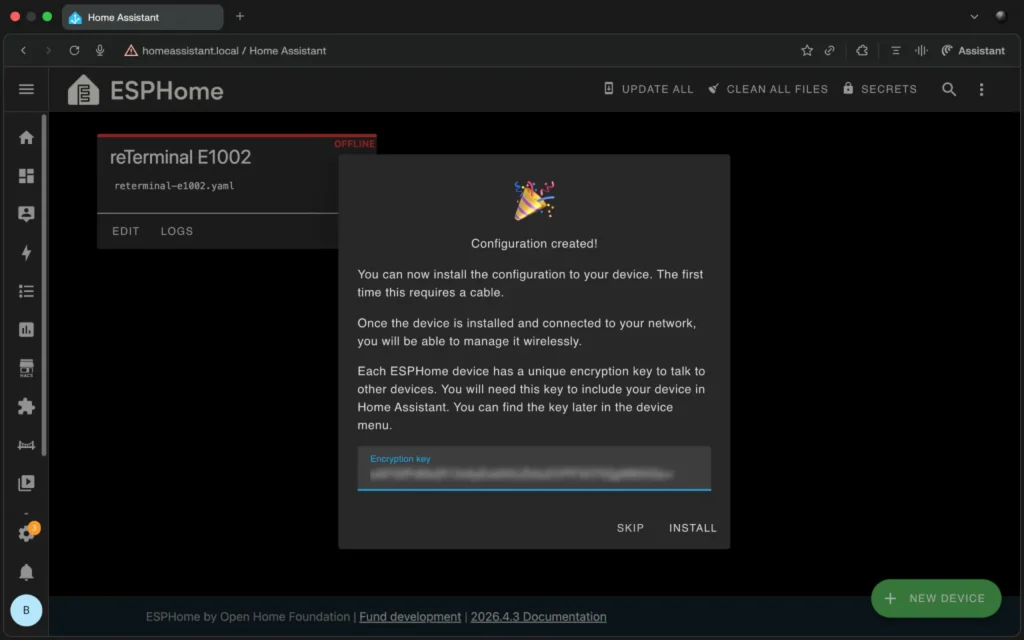
Flashing the initial firmware onto the reTerminal E1002
Next, we’ll install the ESPHome firmware on the device. Click Edit on the reTerminal E1002 device tile to open the configuration editor.
Paste the following YAML code after the captive_portal code line.
# define font to display words
font:
  - file: "gfonts://Inter@700"
    id: myFont
    size: 24

# define SPI interface
spi:
  clk_pin: GPIO7
  mosi_pin: GPIO9

display:
  - platform: epaper_spi
    model: Seeed-reTerminal-E1002 #ESPHome version 2025.11.1 or newer required
    update_interval: 300s
    lambda: |-
      const auto BLACK   = Color(0,   0,   0,   0);
      const auto RED     = Color(255, 0,   0,   0);
      const auto GREEN   = Color(0,   255, 0,   0);
      const auto BLUE    = Color(0,   0,   255, 0);
      const auto YELLOW  = Color(255, 255, 0,   0);
      it.print(0, 0, id(myFont), BLACK, "Hello World!");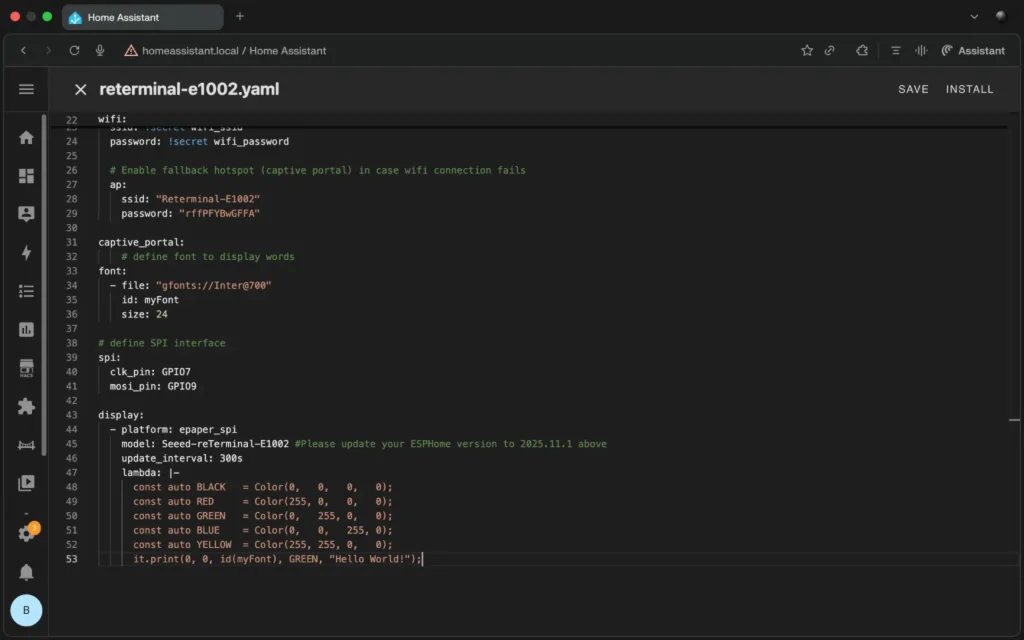
Click Save, then Install. You will be presented with several installation options. For my own installation, I went with the USB connected to a Home Assistant Yellow.
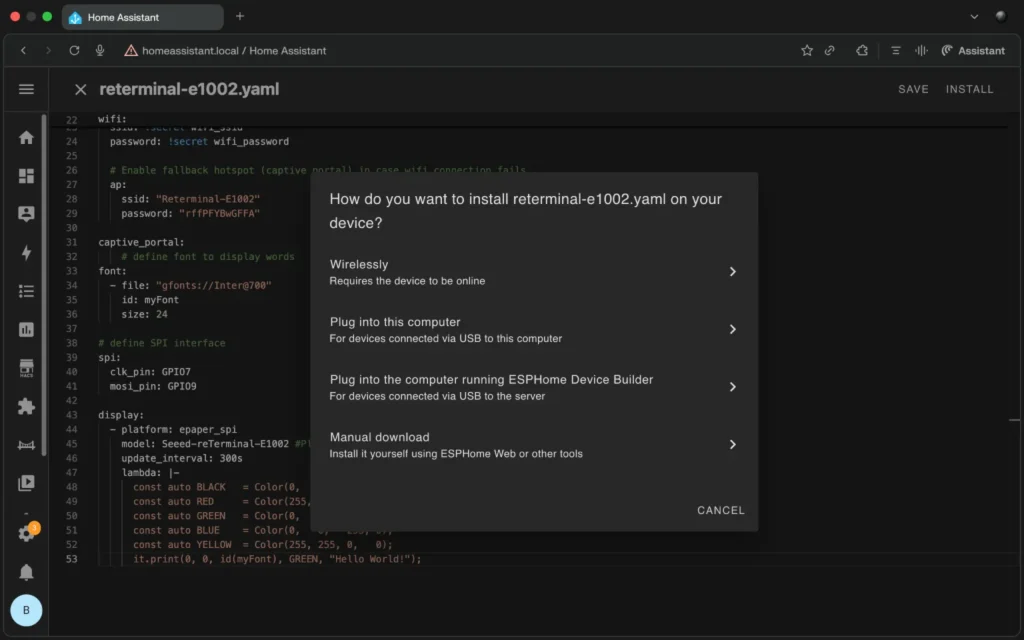
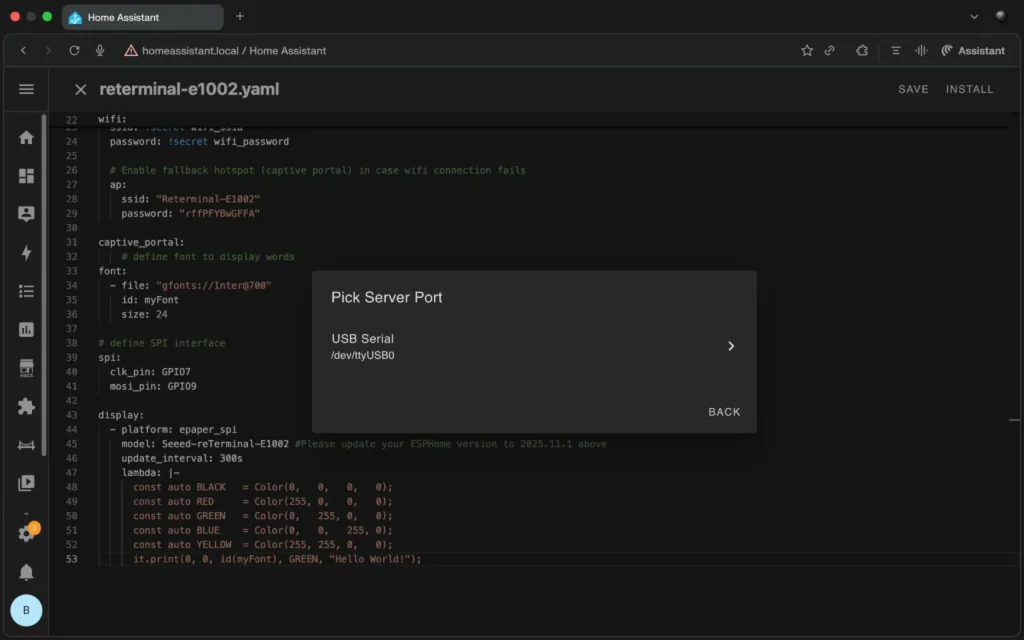
Once selected, the firmware installation begins. Give it a few minutes, and you should see the following screens.
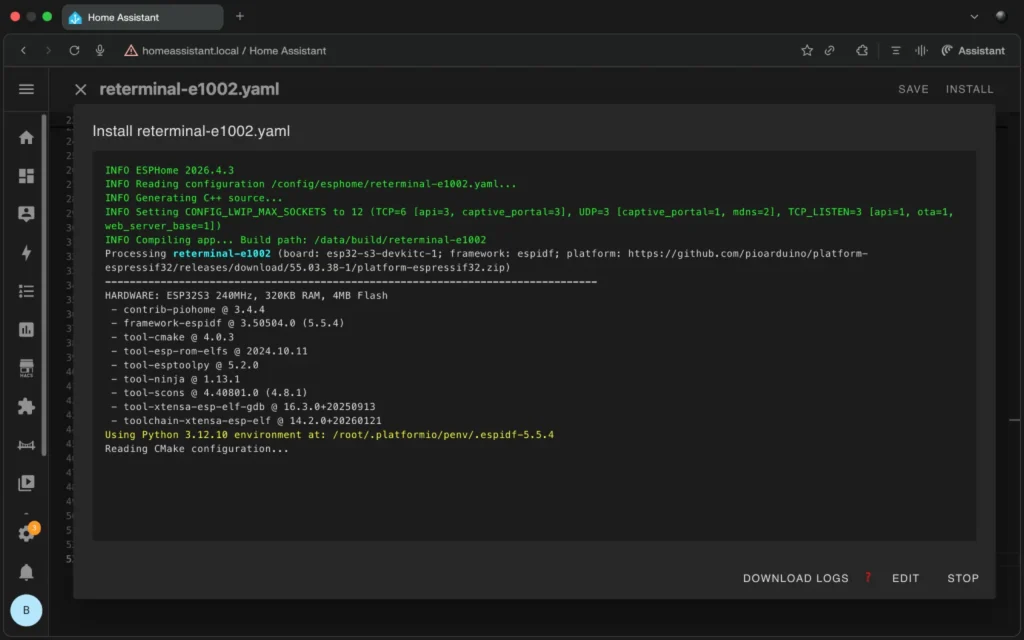
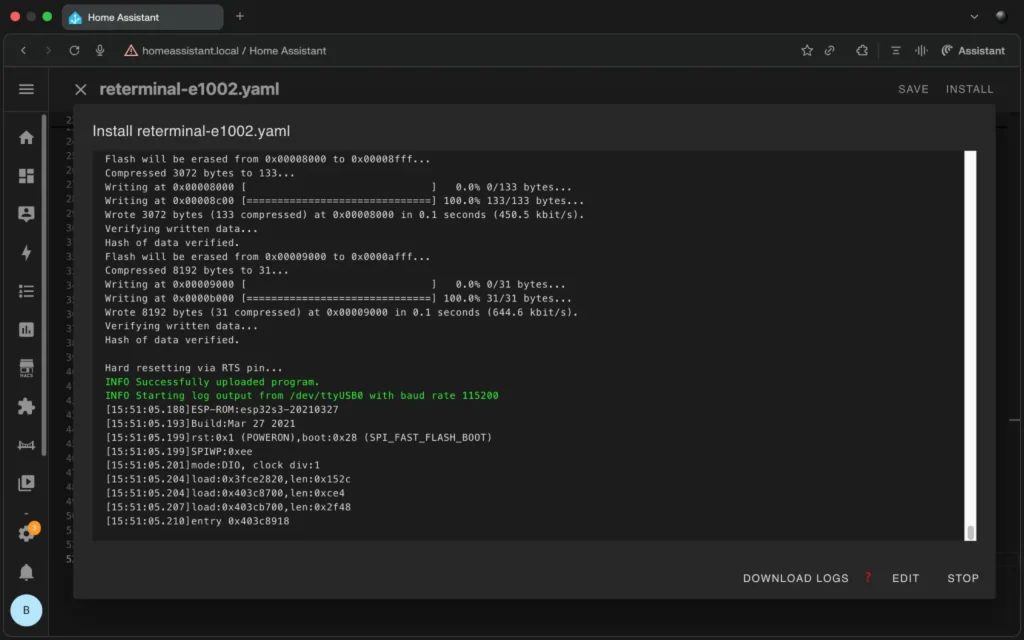
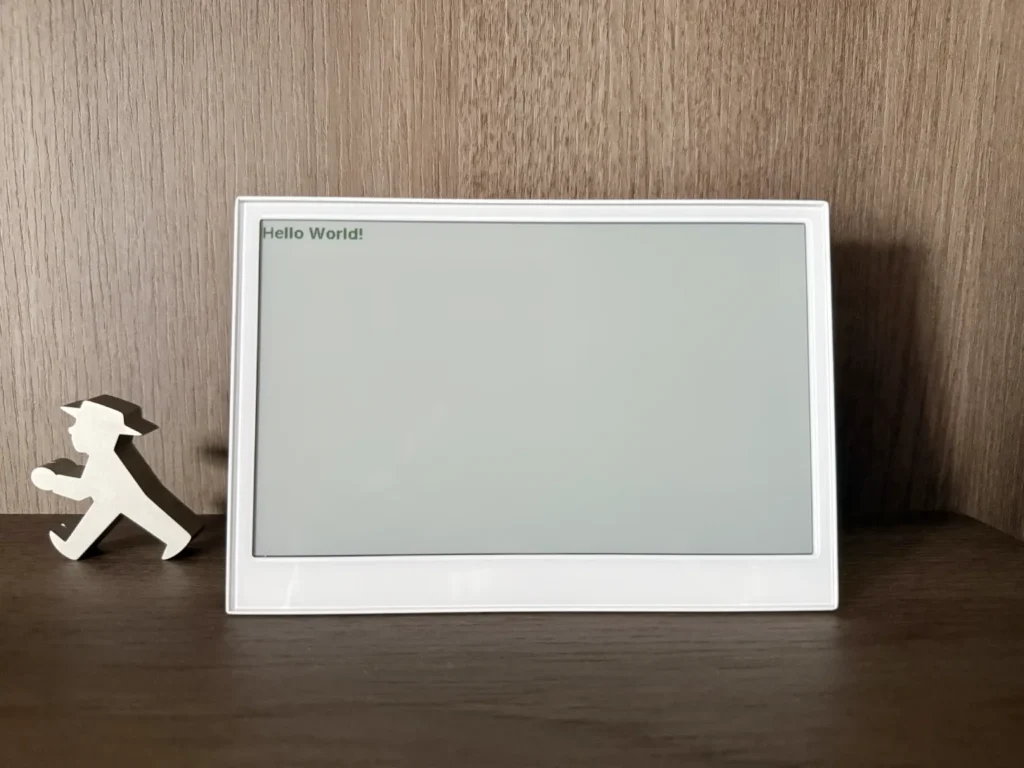
Now you will see “Hello World” displayed on the reTerminal E1002.
Designing your Home Assistant dashboard
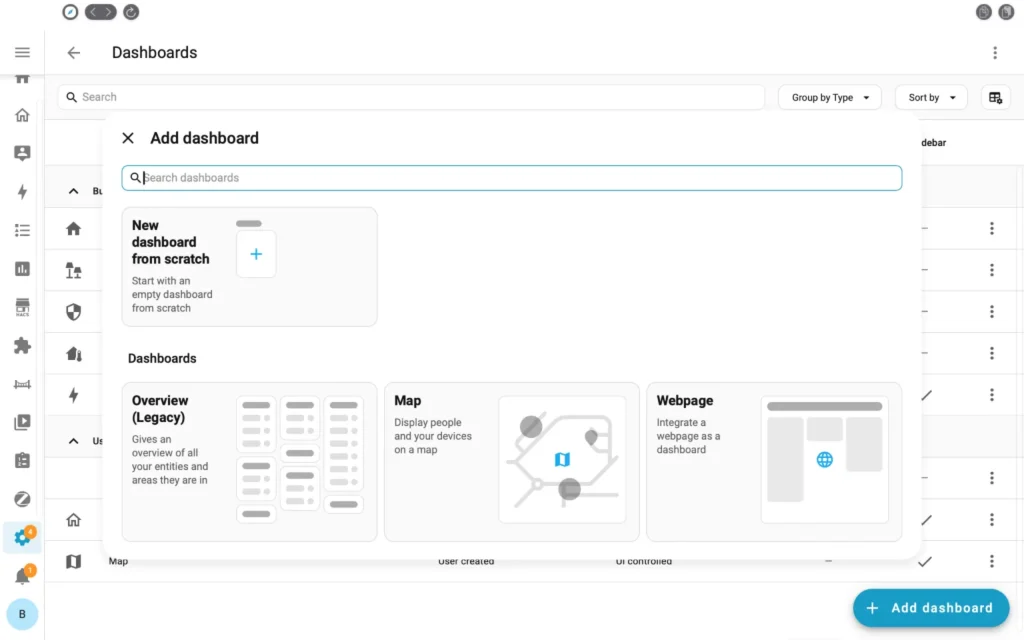
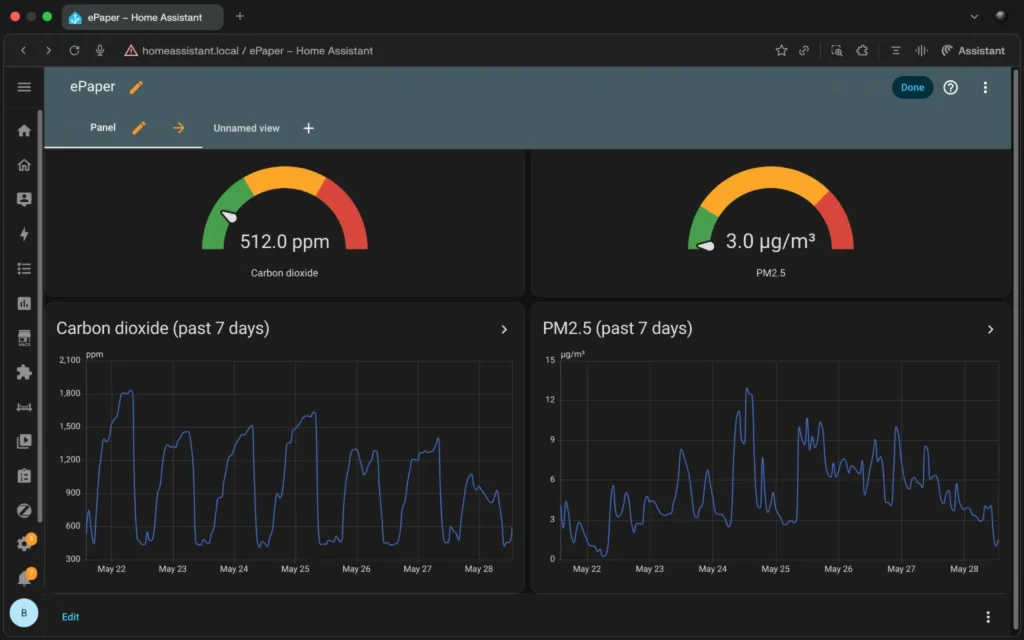
Although Home Assistant automatically generates a dashboard from the devices you add, you can also build your own dashboards visually via the Home Assistant user interface, with no coding required. To create a dashboard, navigate to Settings > Dashboard.
For the ePaper dashboard, I recommend using the Panel (single card) layout to have the entire dashboard fit the display without unnecessary padding or margins.
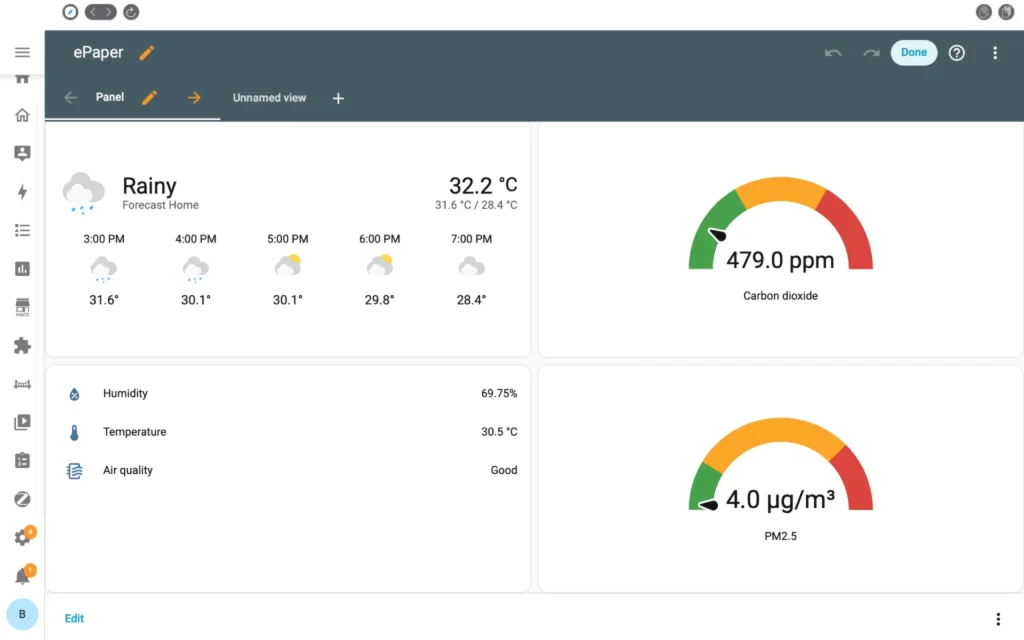
Once you have created your dashboard, you will need a service to publish it on an ePaper display. ESPHome allows you to build a dashboard using YAML, but since we’re not messing with code for this project, we will use the Puppet app for Home Assistant for this purpose.
Installing and configuring Puppet
Puppet allows you to easily create screenshots of your Home Assistant dashboards and put them on e-ink screens or any other screen that can display images.
Follow the steps below to install Puppet.
In Home Assistant, head to Settings > Apps.
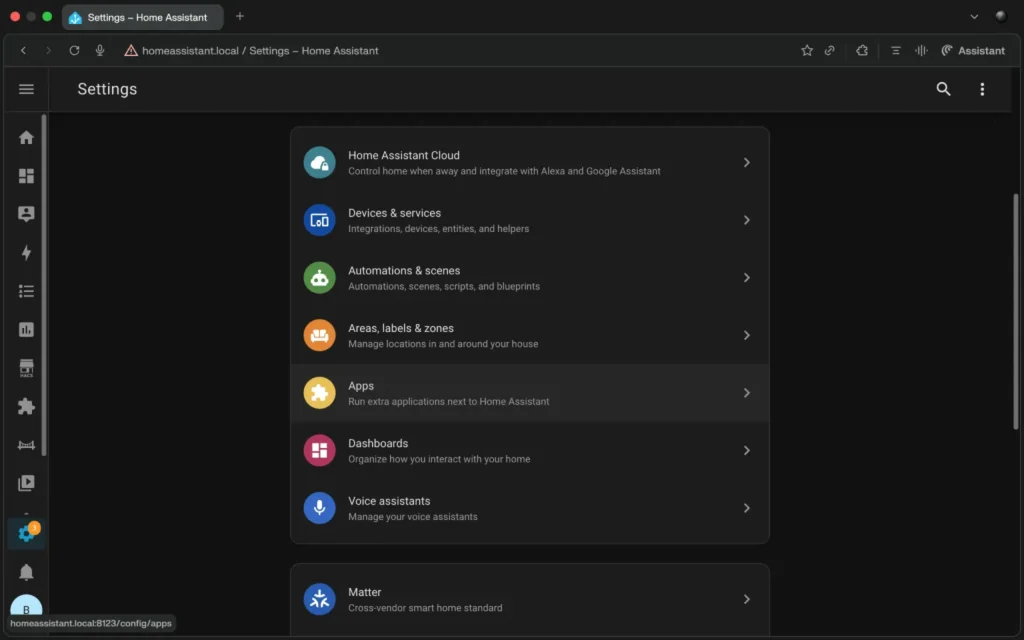
Click Install app.
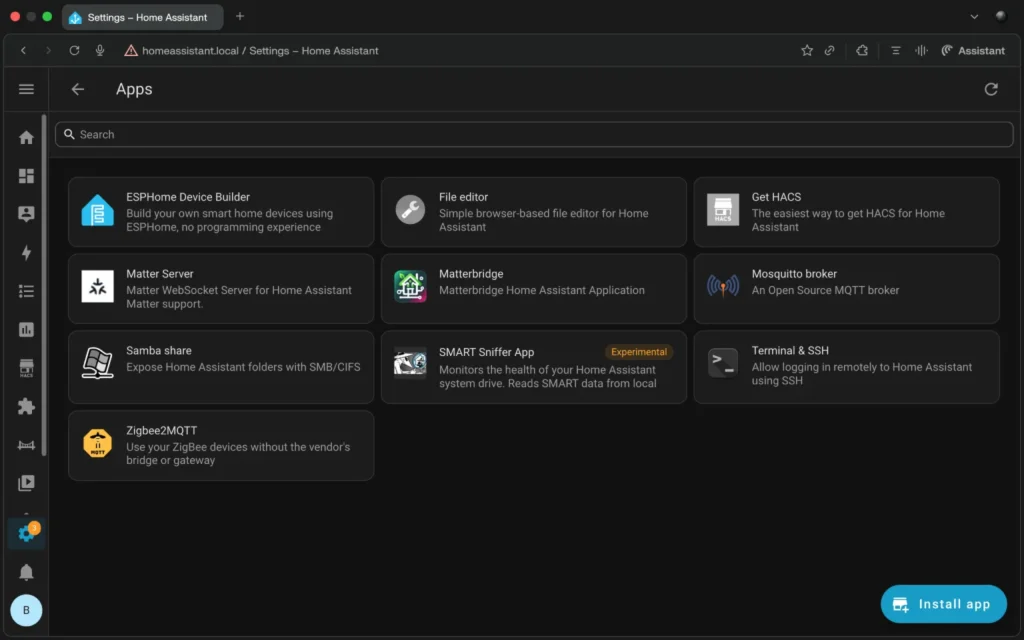
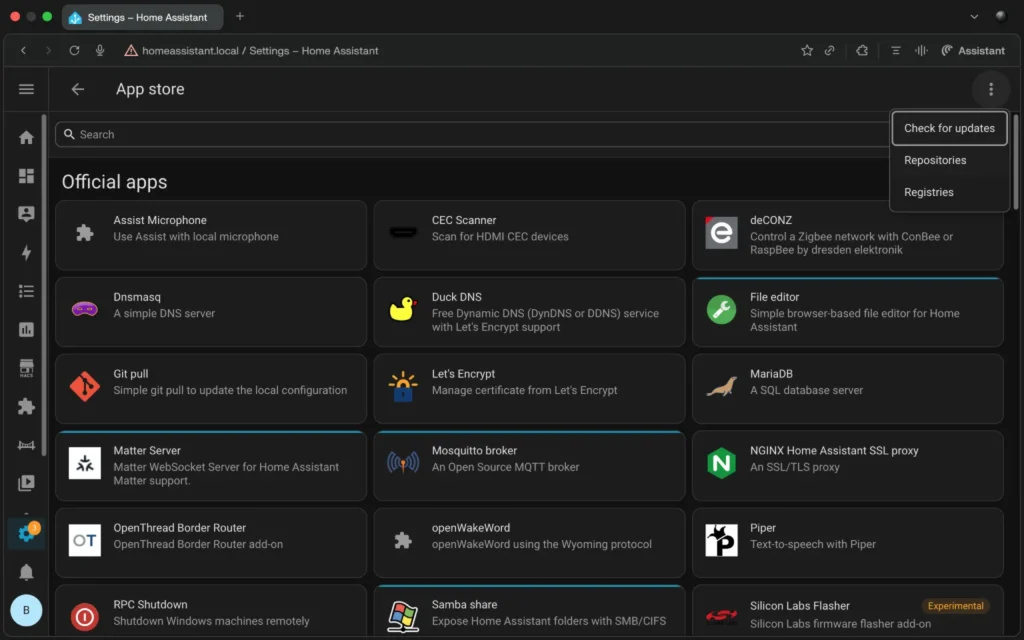
Tap on the 3 dots located on the top right and select Repositories.
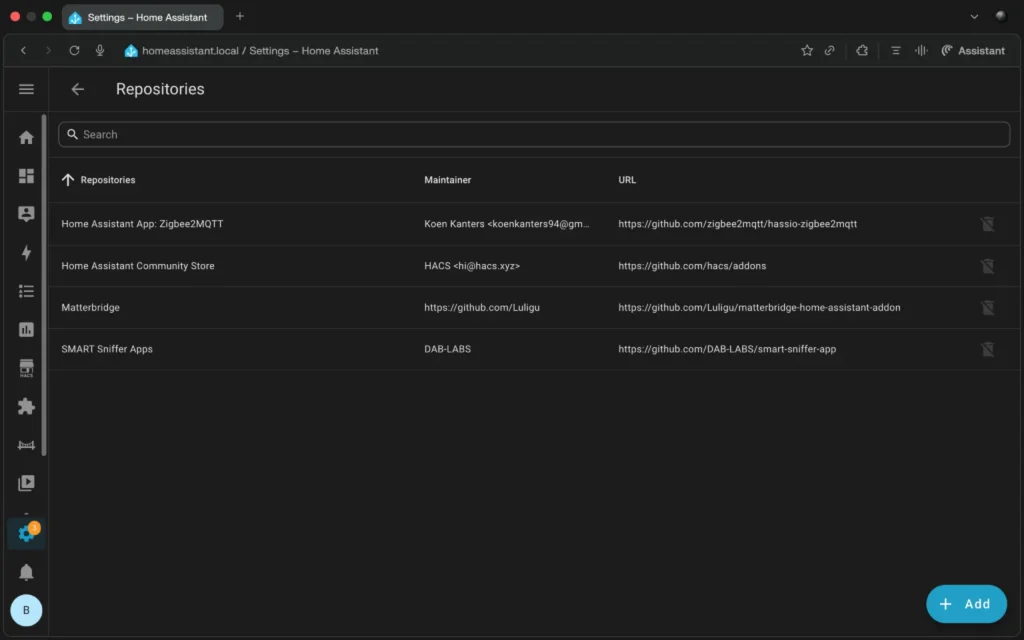
Click the Add button.
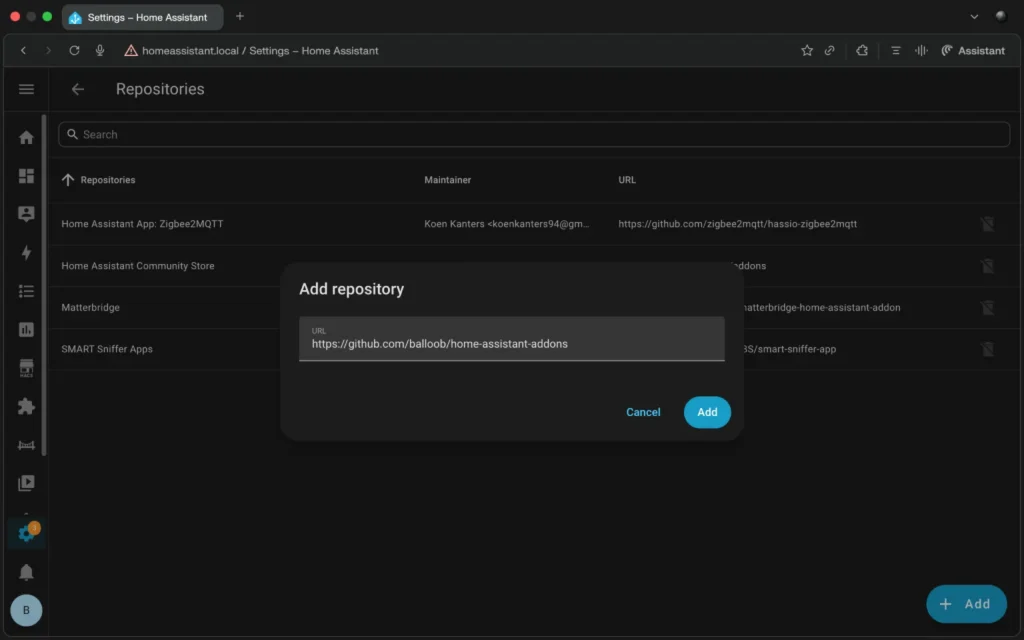
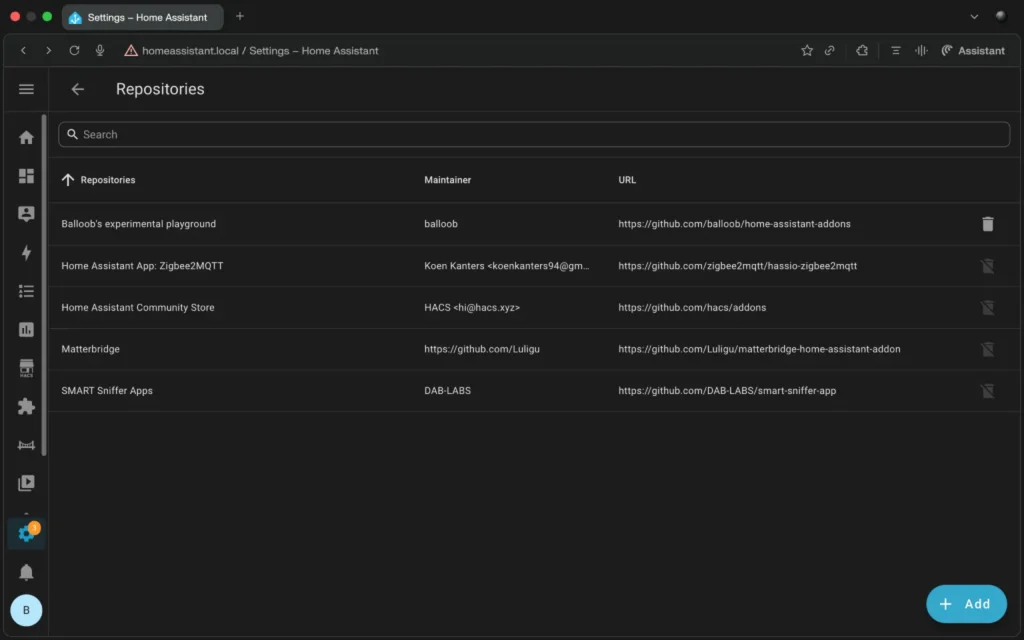
In the Add repository pop-up, enter the following URL: https://github.com/balloob/home-assistant-addons, then click Add.
Go back to the App Store, select Puppet, and install the app.
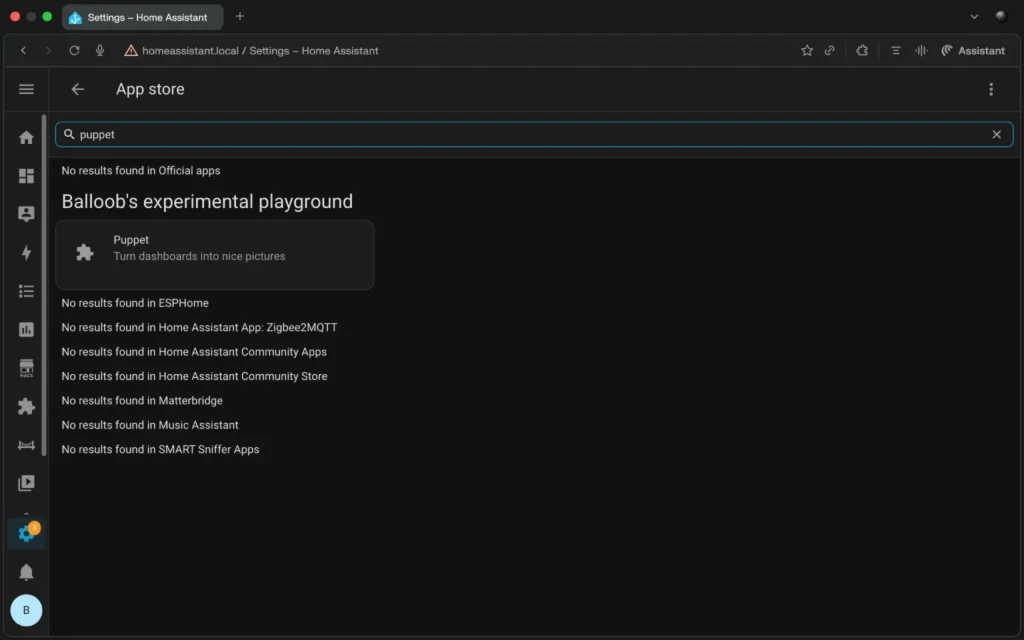
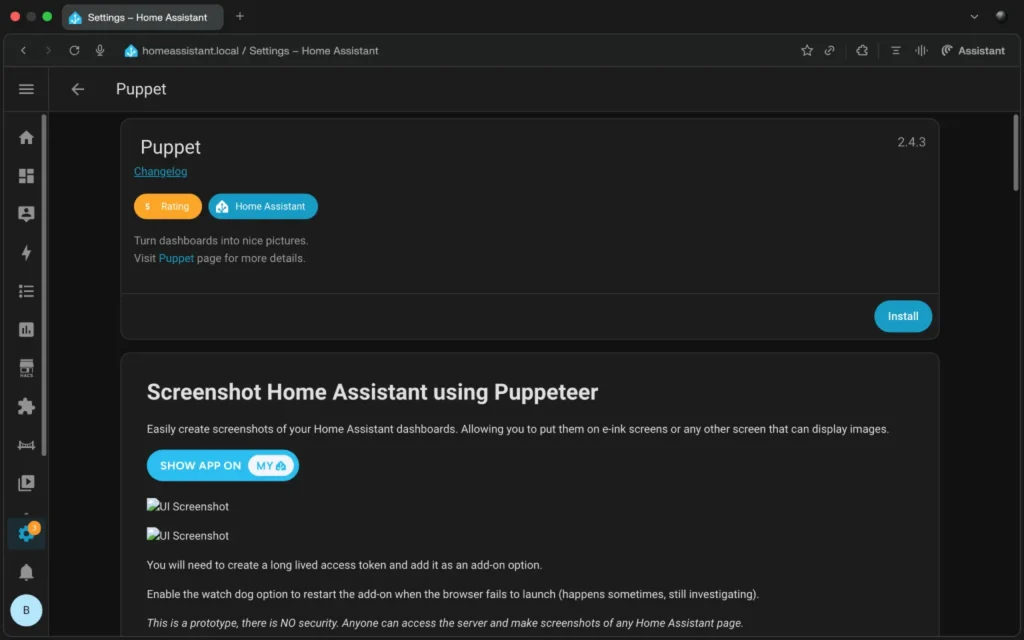
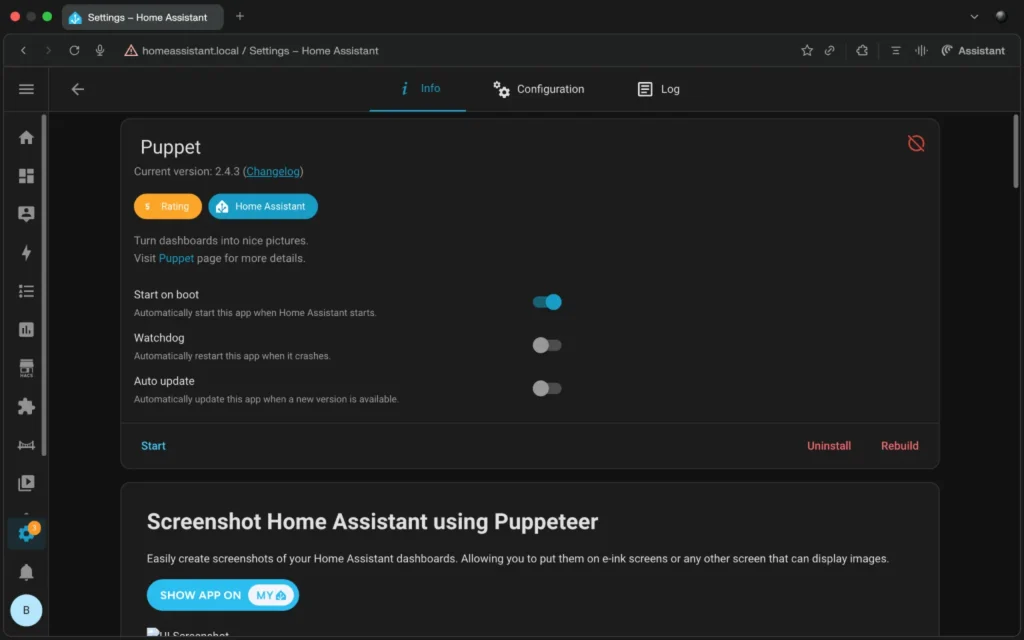
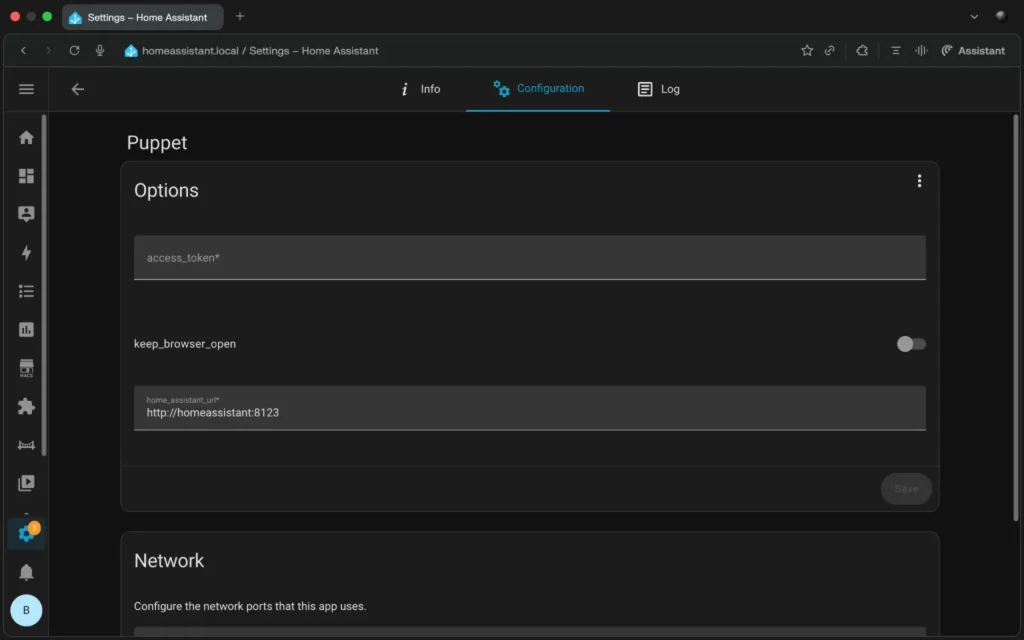
After Puppet installation has completed, we need to add an Access Token under Configuration.
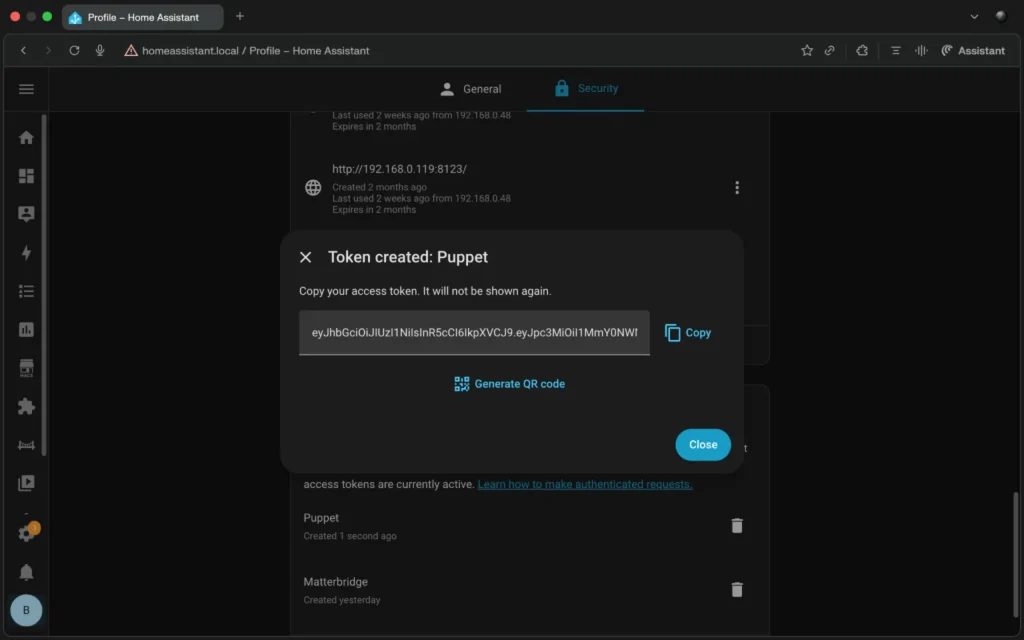
To generate an access token, head to your Home Assistant username, select Security tab and scroll down until you see the section titled Long-lived access token.
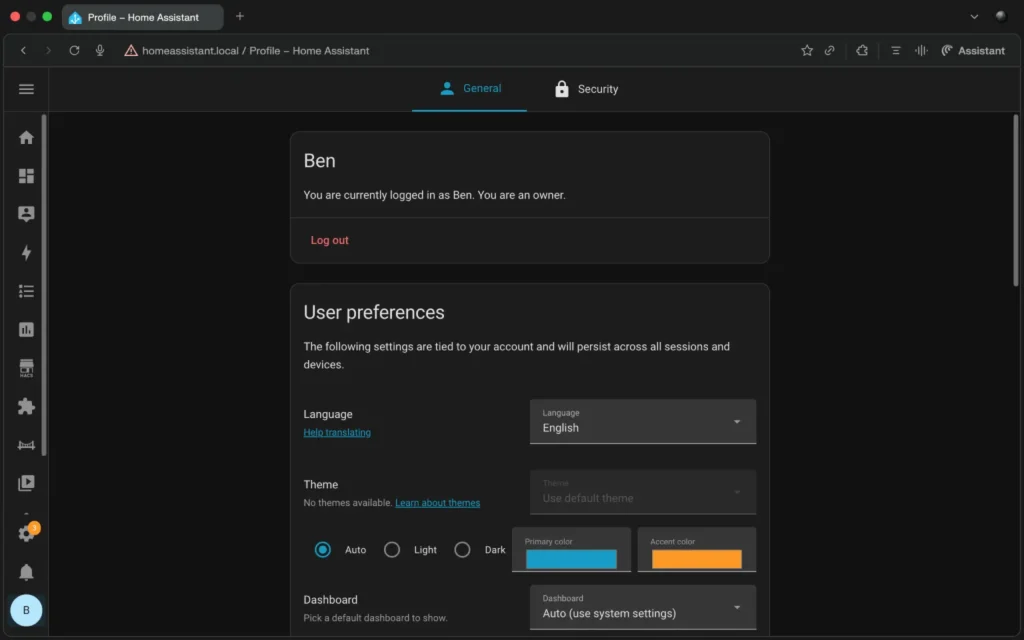
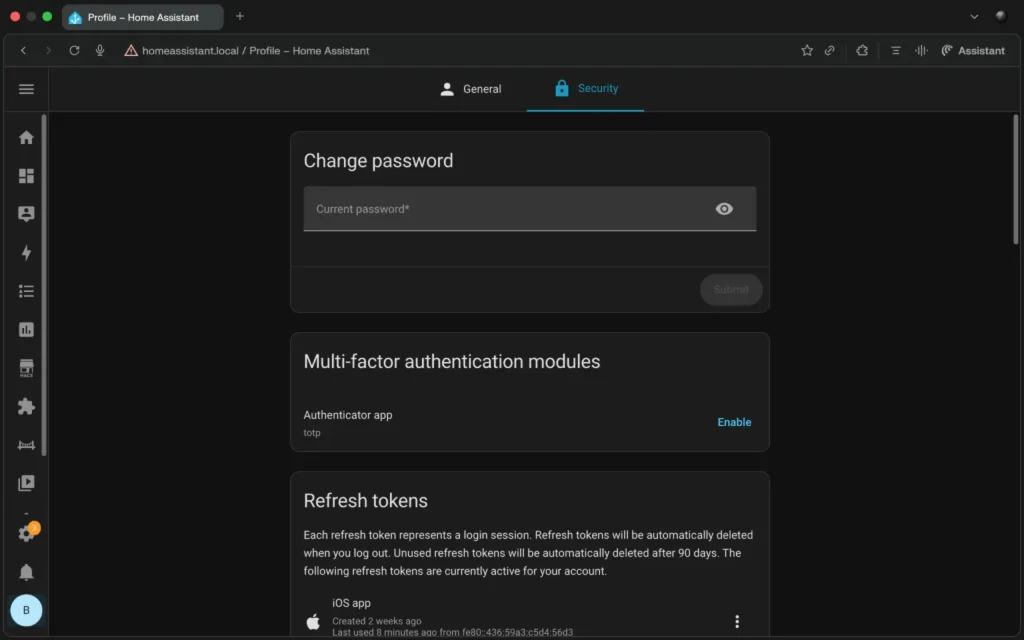
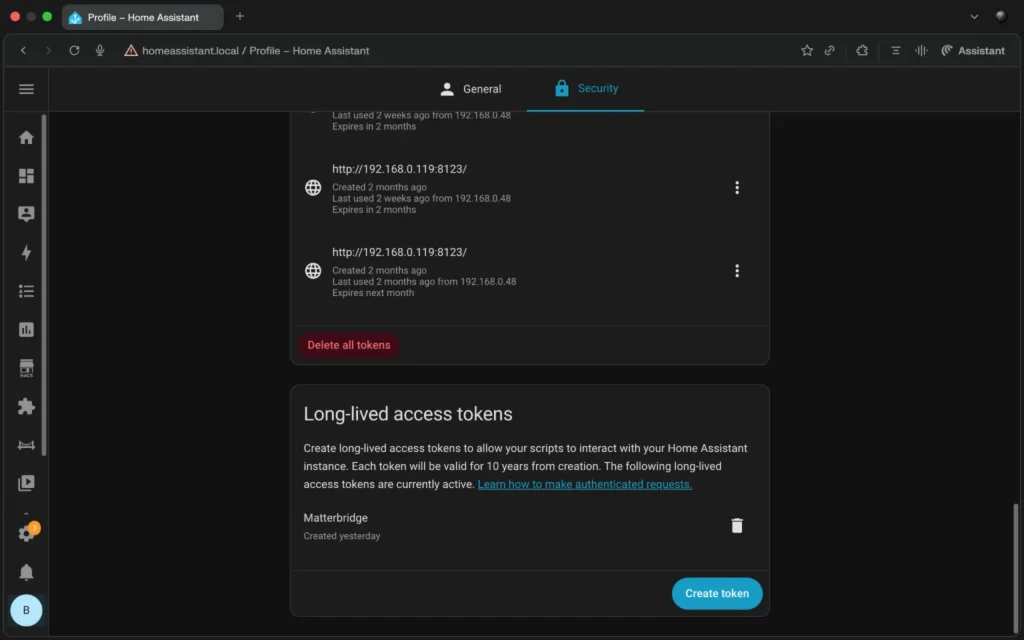
Click Create Token and give it a name.
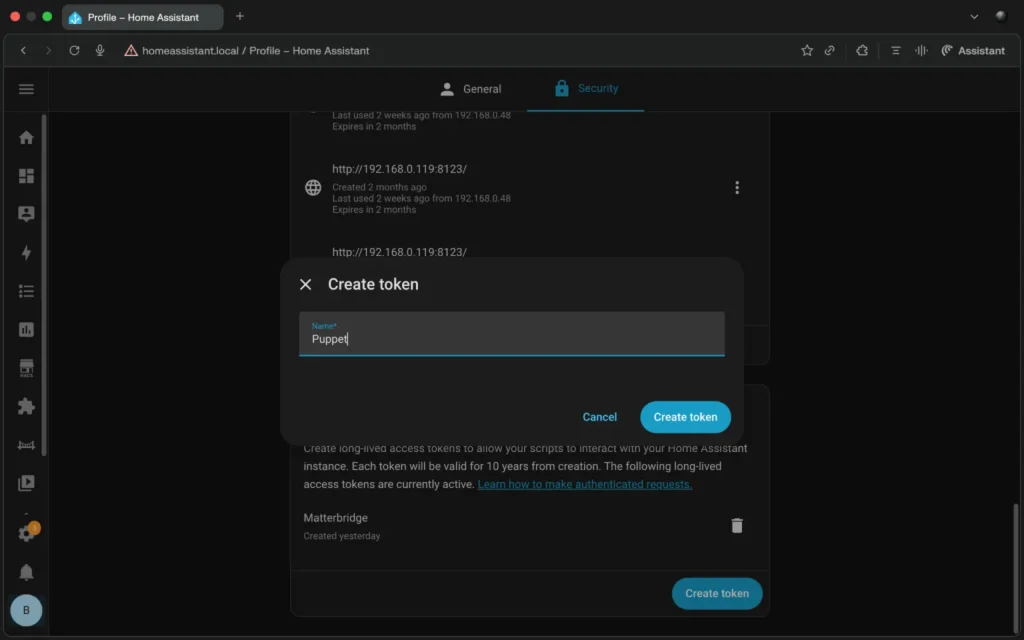
Copy your access token. Make sure you don’t lose it, as you won’t be able to retrieve it again once you close the create token pop-up window.
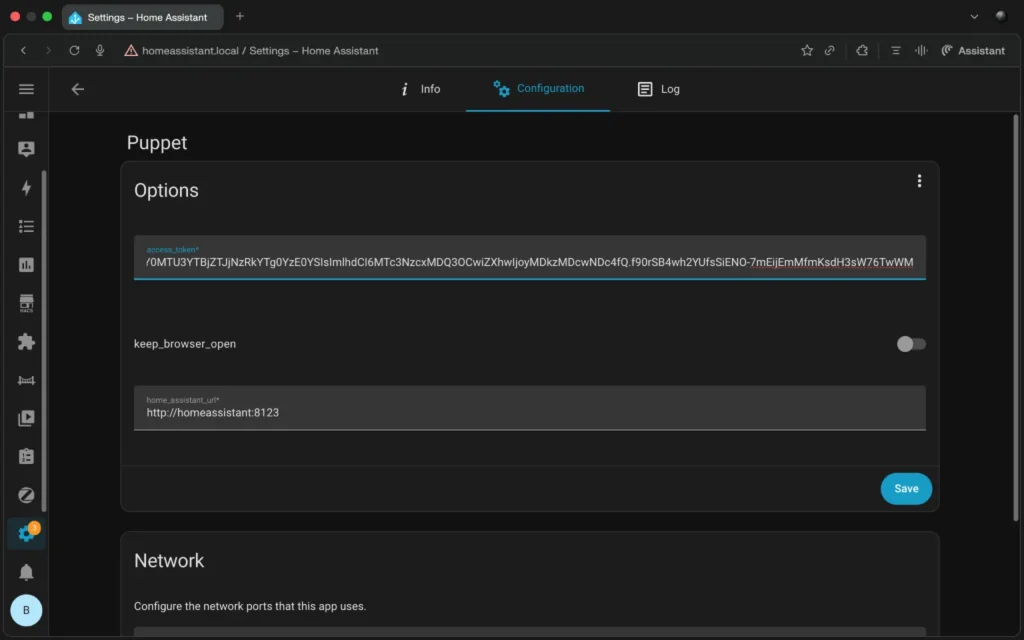
Open Puppet configuration and paste the access token that you created in the previous step.
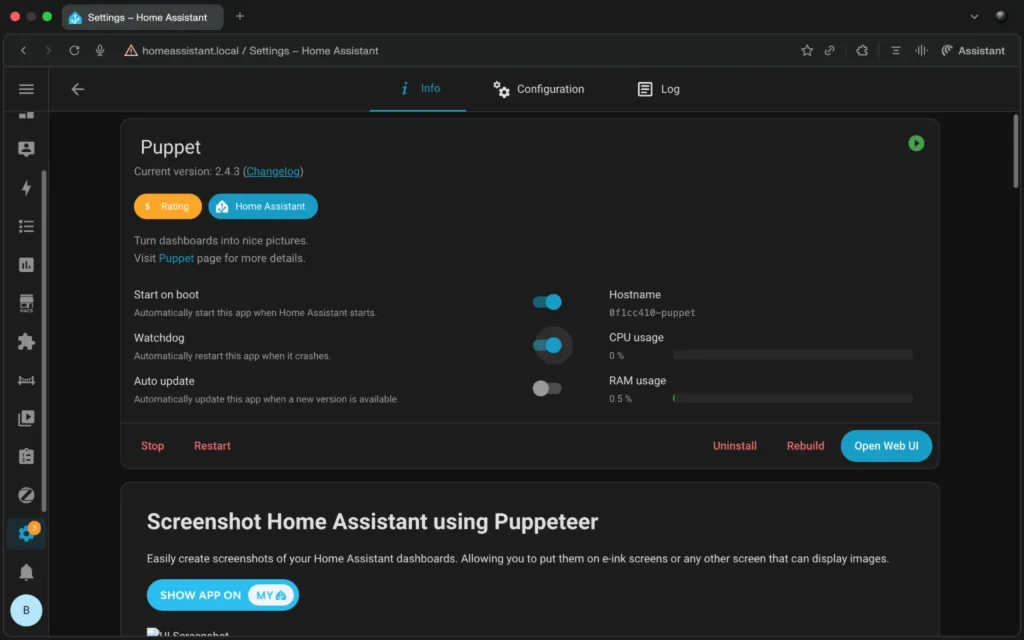
Click Start, and your Puppet app is now ready for use.
With Puppet setup completed, it’s time to configure the dashboard screenshot in Puppet.
Configuring the dashboard for an ePaper display
In the Puppet app screen, click Open Web UI and you will be taken to the Screenshot Settings page.
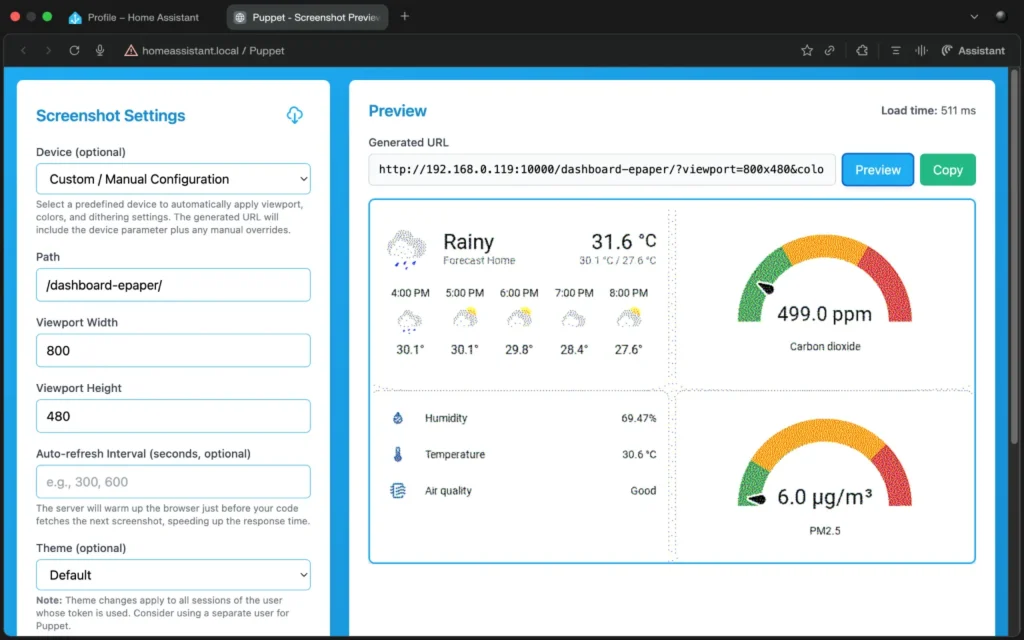
You will need to provide the path to a dashboard and customize the viewport dimensions according to the ePaper display specifications, which are 800 x 480 for the Seeed Studio reTerminal E1002.
Other customizable settings include display dashboard in dark mode or invert display colors.
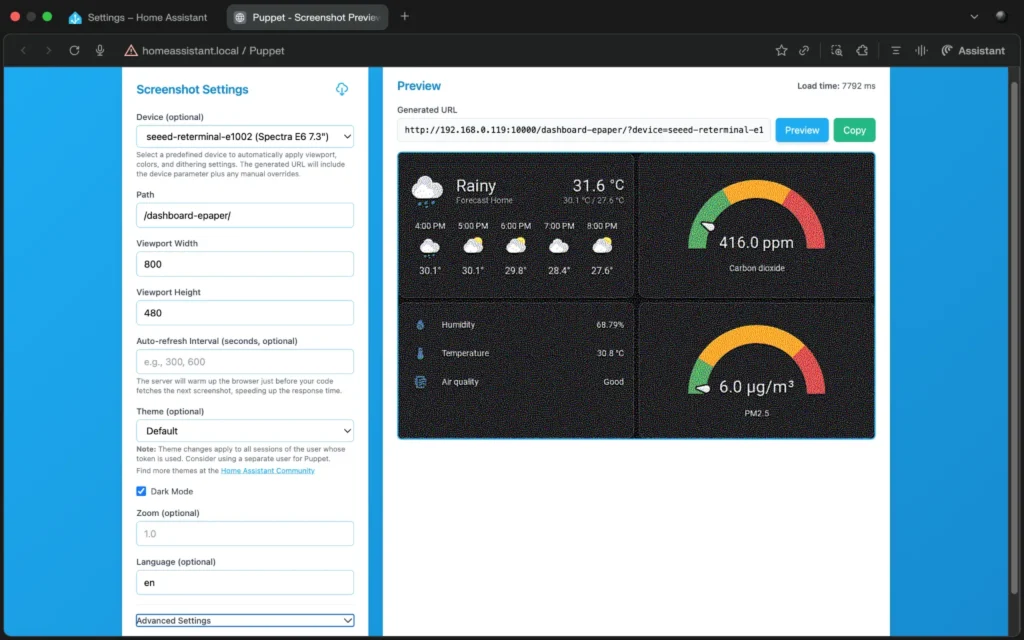
You can preview the dashboard screenshot on the settings page or copy the generated URL and open it in another tab or browser.
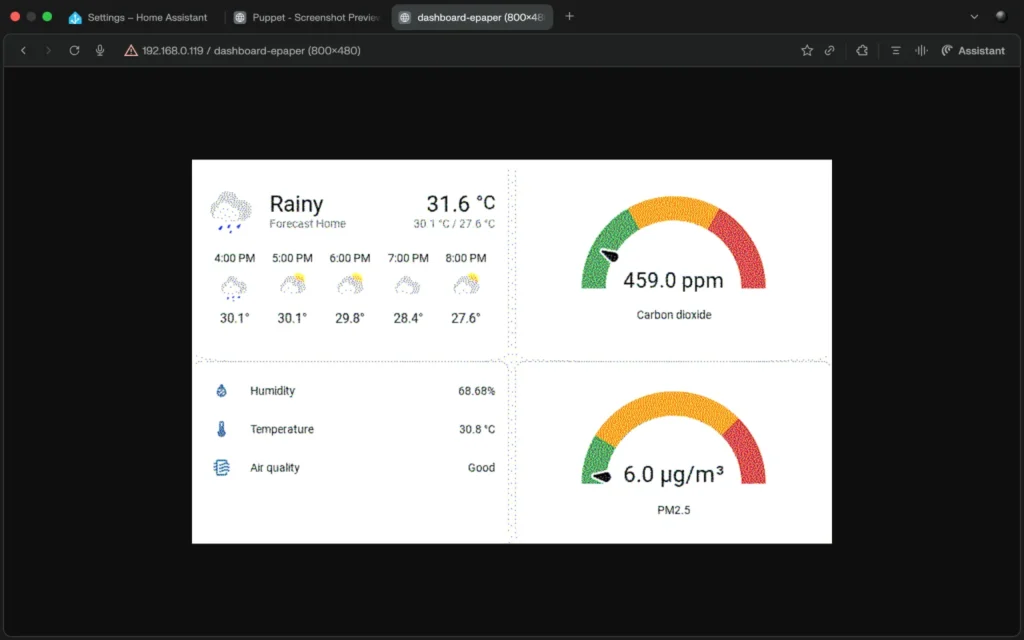
Once you’re happy with the dashboard screenshot settings on Puppet, it’s time for the final step — updating the firmware on the reTerminal E1002 display. Add the YAML code below to the ESPHome configuration and update the URL to the one generated by Puppet for your specific dashboard.
……
psram:
  mode: octal
  speed: 80MHz

……

captive_portal:

spi:
  clk_pin: GPIO7
  mosi_pin: GPIO9

http_request:
  verify_ssl: false
  timeout: 20s
  watchdog_timeout: 25s

online_image:
  - id: dashboard_image
    format: PNG
    type: RGB565
    buffer_size: 65536
    url: http://192.168.1.12:10000/lovelace/0?viewport=800x480 #Replace with your Puppet generated URL
    update_interval: 1min
    on_download_finished:
      - component.update: epaper_display

display:
  - platform: epaper_spi
    id: epaper_display
    model: Seeed-reTerminal-E1002
    update_interval: never
    lambda: |-
      it.image(0, 0, id(dashboard_image));
Click Save, then Install, and wait for ESPHome to complete firmware installation. After which, you’ll be able to see your dashboard on the ePaper display.
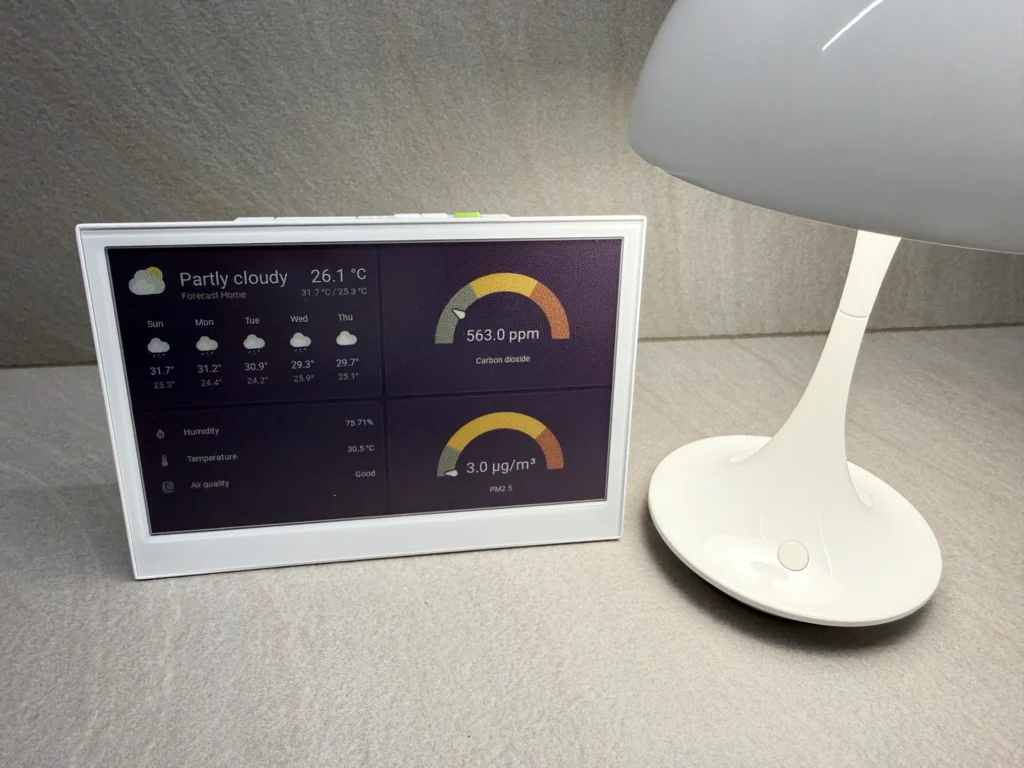
Updating the dashboard post-firmware installation
Once the ESPHome firmware is installed on the reTerminal E1002, you can edit your dashboard on Home Assistant, and it will automatically reflect on the e-ink display, without having to reinstall the ESPHome firmware or change a single line of code.
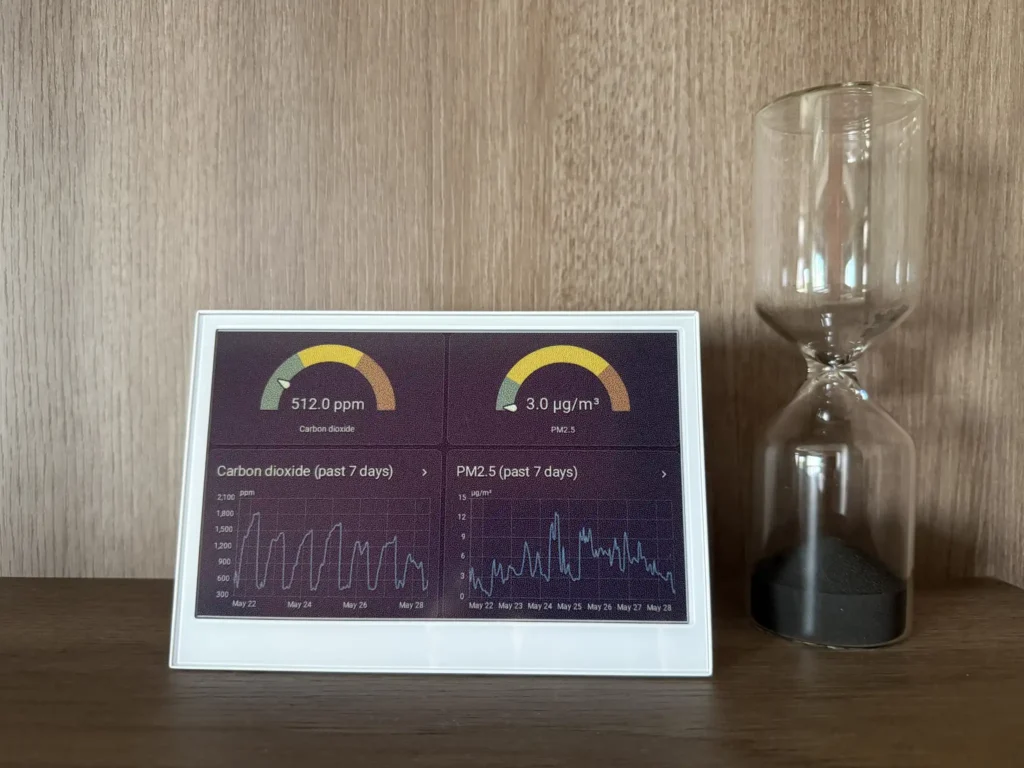
Optimizing for battery life and monitoring with local sensors
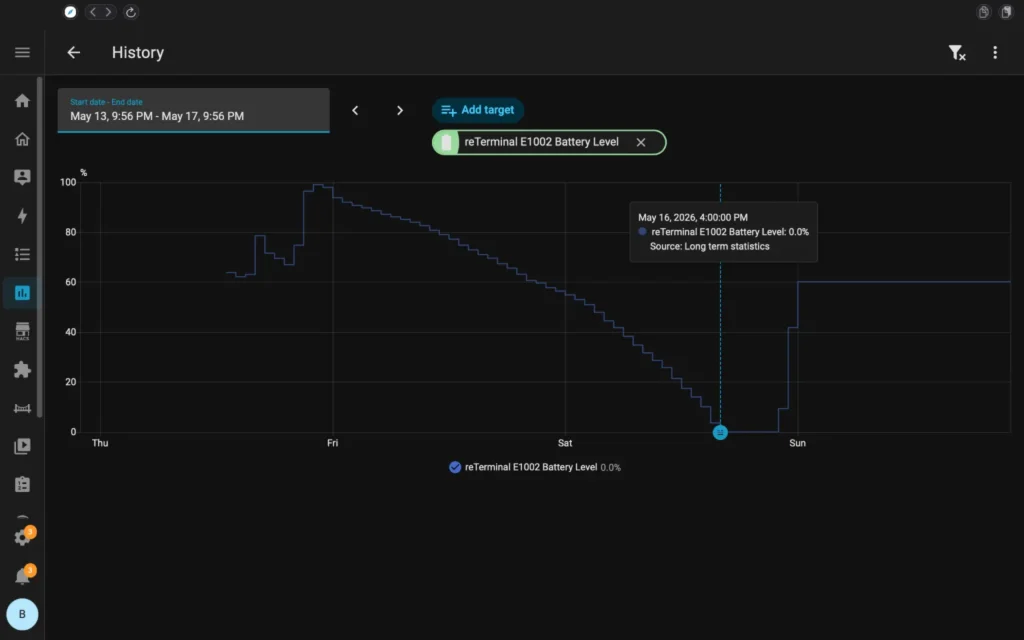
When it comes to battery life, the reTerminal E1002 couldn’t even last 2 full days with a screen refresh cycle set to every 10 minutes.
To overcome the rapid battery drain, I modified the YAML configuration to include periods of deep sleep between screen refreshes. This helped to increase battery life tremendously, as you can see from the Home Assistant battery sensor history below.
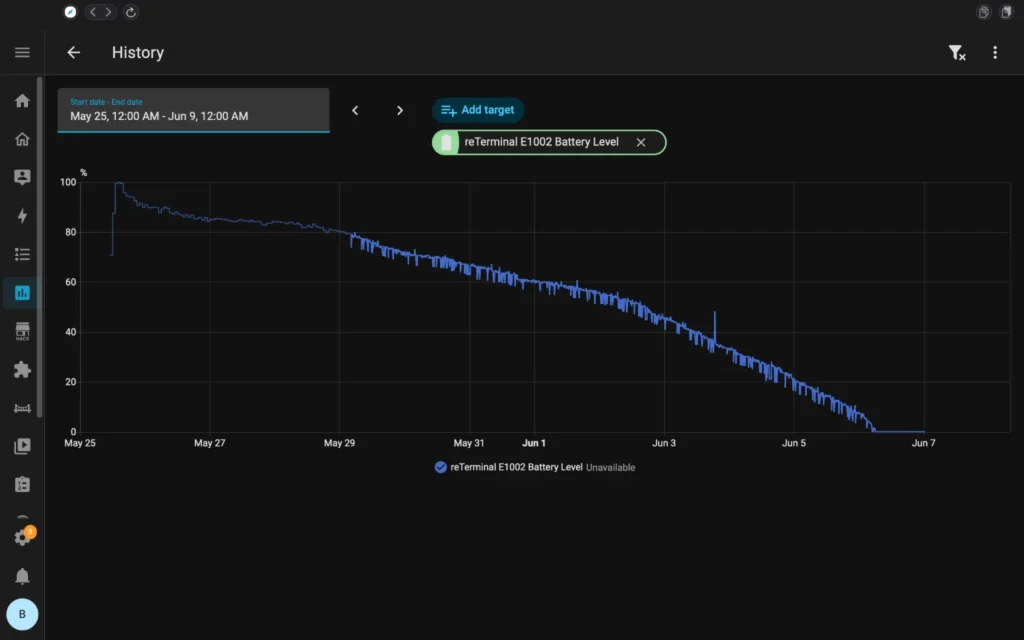
The reTerminal E1002 features battery, temperature, and humidity sensors, which are useful for keeping tabs on when to charge the ePaper display and climate-related automations such as turning on the air conditioner when temperature or humidity exceeds preset levels.
The sensors will be available in Home Assistant after enabling them in the ESPHome YAML configuration and adding the reTerminal E1002 device through the ESPHome integration.
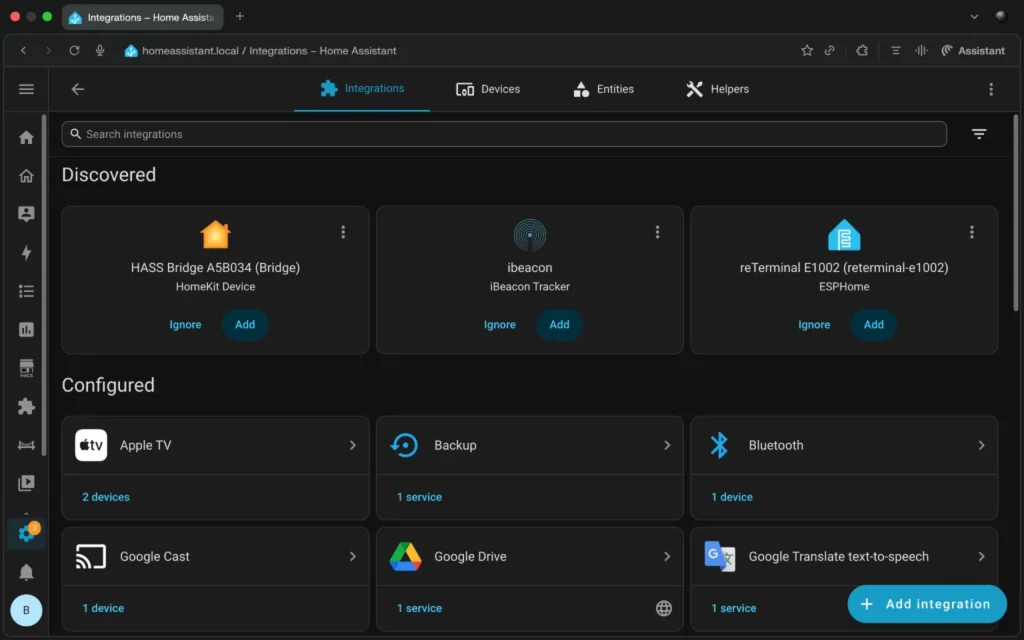
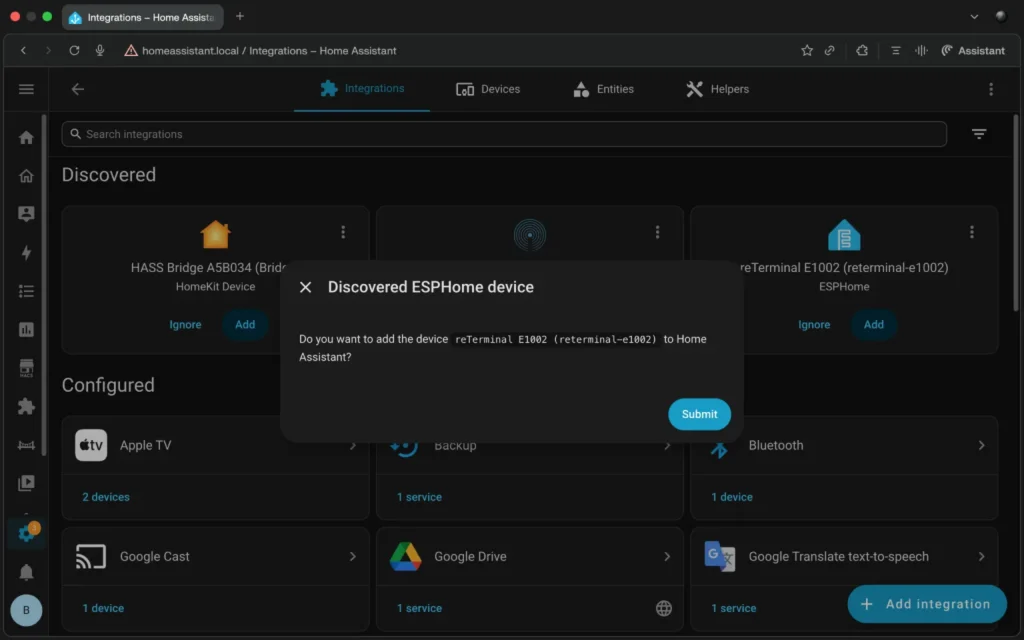
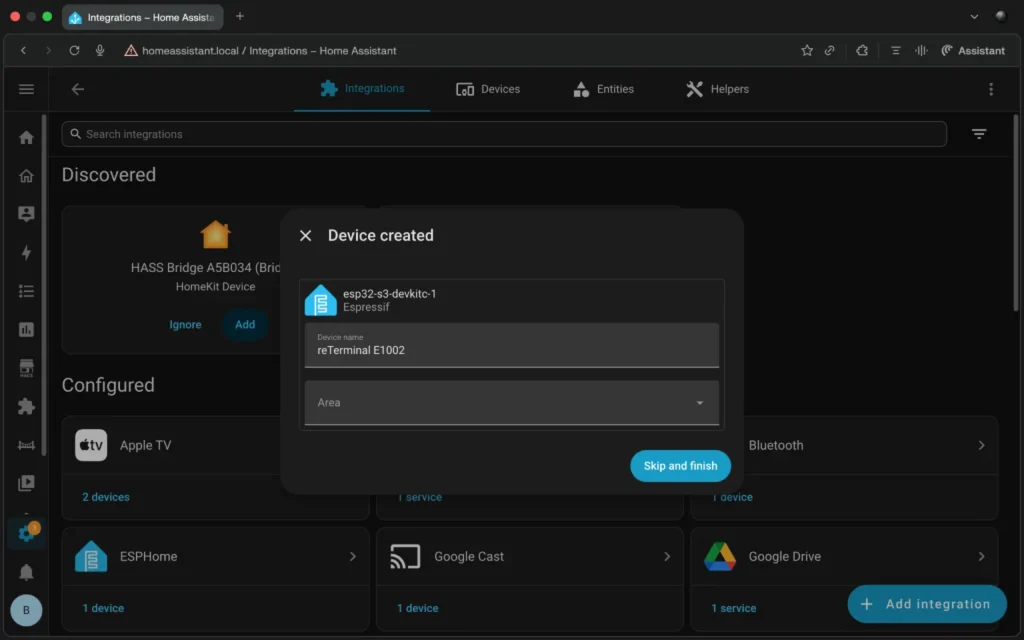
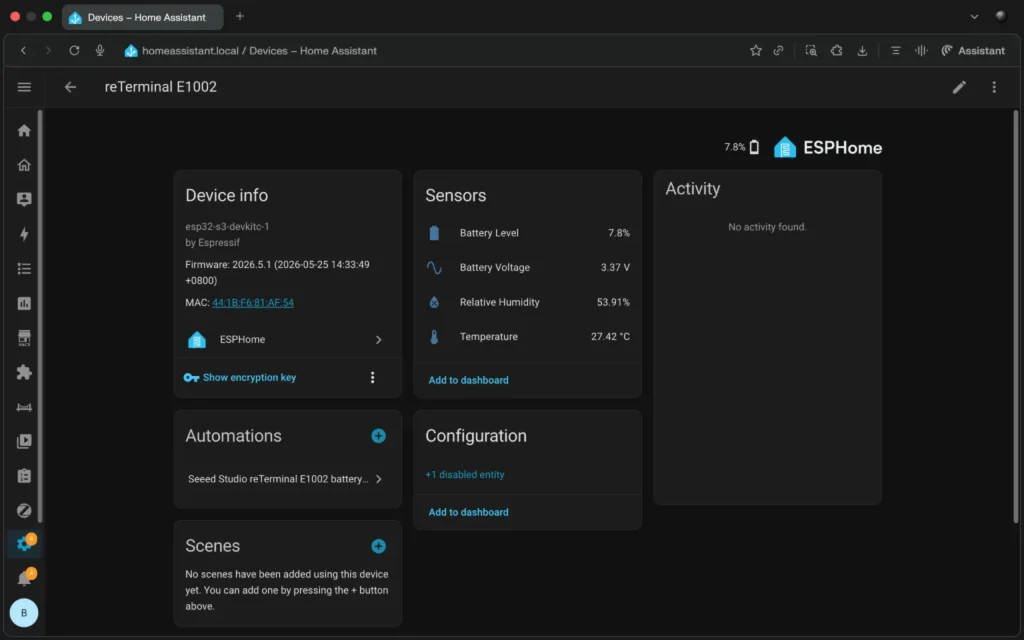
Before the reTerminal E1002 device can be discovered by Home Assistant, you will need to enable the sensors on the ESPHome firmware to be flashed onto the device. Here’s the full YAML configuration with deep sleep and all sensors enabled.
esphome:
  name: reterminal-e1002
  friendly_name: reTerminal E1002


  on_boot:
    priority: 600
    then:
      - output.turn_on: bsp_battery_enable # Enable battery monitoring
      - delay: 200ms
      - component.update: battery_voltage
      - component.update: battery_level


esp32:
  board: esp32-s3-devkitc-1
  framework:
    type: esp-idf

# Enable logging
logger:

# Enable Home Assistant API
api:
  encryption:
    key: "aaaaaaaaaaaaaaaaaaaa" #Replace this with your own API key

ota:
  - platform: esphome
    password: "bbbbbbbbbbbbbbbbbbbbb" #Replace this with your own OTA password

wifi:
  ssid: !secret wifi_ssid
  password: !secret wifi_password

  # Enable fallback hotspot (captive portal) in case wifi connection fails
  ap:
    ssid: "Reterminal-E1002"
    password: "ccccccccccccccc" #Replace this with your own device password

  fast_connect: true

  on_connect:
    then:
      - logger.log: "WiFi connected, starting dashboard update"
      - component.update: dashboard_image

psram:
  mode: octal
  speed: 80MHz

captive_portal:

# Deep sleep configuration
deep_sleep:
  id: deep_sleep_1
  sleep_duration: 10min  # Then sleeps for 10 minutes

  # Optional: Use a button to wake from sleep
  wakeup_pin: GPIO4
  wakeup_pin_mode: INVERT_WAKEUP

spi:
  clk_pin: GPIO7
  mosi_pin: GPIO9

# Enable temperature and humidity sensors
i2c:
  scl: GPIO20
  sda: GPIO19

http_request:
  verify_ssl: false
  timeout: 20s
  watchdog_timeout: 25s

online_image:
  - id: dashboard_image
    format: PNG
    type: RGB565
    buffer_size: 65536
    url: http://homeassistant.local:10000/dashboard-epaper/?device=seeed-reterminal-e1002&dark=&lang=en  #Replace with your own Puppet generated URL
    update_interval: never
    on_download_finished:
      then:
        - logger.log: "Dashboard image downloaded"

        # Give decoder/display time to settle
        - delay: 1s

        # Refresh display
        - component.update: epaper_display

      # VERY IMPORTANT
        # E-paper refresh is physically slow
        - delay: 45s

        # Enter deep sleep only AFTER refresh fully completes
        - logger.log: "Entering deep sleep"
        - deep_sleep.enter: deep_sleep_1

    on_error:
      then:
        - logger.log: "Dashboard download failed"

        # Sleep anyway to preserve battery
        - delay: 5s
        - deep_sleep.enter: deep_sleep_1

display:
  - platform: epaper_spi
    id: epaper_display
    model: Seeed-reTerminal-E1002
    update_interval: never
    full_update_every: 1 # Force full refresh every update
    lambda: |-
      it.image(0, 0, id(dashboard_image));

# Enable battery monitoring
output:
  - platform: gpio
    pin: GPIO21
    id: bsp_battery_enable

sensor:
  - platform: adc
    pin: GPIO1
    name: "Battery Voltage"
    id: battery_voltage
    update_interval: 60s
    attenuation: 12db
    filters:
      - multiply: 2.0  # Voltage divider compensation

  # Enable temperature and humidity sensors
  - platform: sht4x
    temperature:
      name: "Temperature"
      id: temp_sensor
    humidity:
      name: "Relative Humidity"
      id: hum_sensor

  - platform: template
    name: "Battery Level"
    id: battery_level
    unit_of_measurement: "%"
    icon: "mdi:battery"
    device_class: battery
    state_class: measurement
    lambda: 'return id(battery_voltage).state;'
    update_interval: never
    filters:
      - calibrate_linear:
          - 4.15 -> 100.0
          - 3.96 -> 90.0
          - 3.91 -> 80.0
          - 3.85 -> 70.0
          - 3.80 -> 60.0
          - 3.75 -> 50.0
          - 3.68 -> 40.0
          - 3.58 -> 30.0
          - 3.49 -> 20.0
          - 3.41 -> 10.0
          - 3.30 -> 5.0
          - 3.27 -> 0.0
      - clamp:
          min_value: 0
          max_value: 100
Alternative use cases for the reTerminal E1002
The approach covered in this guide is just one way to publish content onto the reTerminal E1002 ePaper display. Depending on your setup and how much control you want, there are a few other routes worth knowing about.
SenseCraft HMI
SenseCraft HMI is Seeed Studio’s own no-code platform for the reTerminal E series. Using a web-based drag-and-drop editor, you can design dashboard layouts and deploy them wirelessly to the device without writing any code. It’s the firmware the E1002 ships with out of the box, and the quickest way to get content on screen if you’re not using Home Assistant.
I experimented with this platform to see how photos appear on the ePaper screen. Because it’s an e-ink display, the dithered images lack the fine detail and smooth gradients of the originals. You can judge the results for yourself below by comparing the original files to how they actually look when rendered via SenseCraft HMI onto the reTerminal E1002.
 Glacier hiking, Iceland on Seeed Studio reTerminal E1002
 Rainbow Street, Reykjavík on Seeed Studio reTerminal E1002
 Hallgrímskirkja, Reykjavík on Seeed Studio reTerminal E1002

Glacier hiking, Iceland

Rainbow Street, Reykjavik

Hallgrímskirkja, Reykjavík
TRMNL
The E1002 also supports the TRMNL e-ink dashboard platform, which offers a growing library of pre-built plugins for displaying data from popular services. It’s an option if you want a polished dashboard experience without building anything from scratch.
ESPHome with custom YAML
If you want full control over exactly what appears on the display and how it behaves, flashing the E1002 with a custom ESPHome configuration is the most flexible route. It requires more effort, as you’ll be writing YAML to define every element of the display layout — but it gives you complete local control and deep Home Assistant integration. Seeed Studio has cookbooks to get you started if you want to go down this path.





Leave a Reply